Update and manage accounts
You can update a newly created account during certain verification and capability status windows. Profile and underwriting data must also be submitted for the account before you have the ability to edit it.
Certain fields like accountType, can't be updated once an account has been created.
Update windows
Moov uses the capability status to determine when profile and onboarding information can be edited.
pendingstatus: Update or provide missing required information, or data that triggers a verification errorin-review&enabled: Update or provide missing required information
When an account is in-review or pending, most submitted underwriting data is locked, and cannot be edited or removed. If you need to change locked data for a capability that is already in use, contact support.
metadata, foreignID, and settings can always be updated, regardless of capability status.
Capability status & editable fields
Existing data refers to fields that have already been provided and accepted. These fields are locked once the capability moves to in-review or enabled.
| Status | Edit existing data | Edit incomplete data | Provide missing data |
|---|---|---|---|
disabled |
✓ | ✓ | ✓ |
pending |
✓ | ✓ | |
in-review |
✓ | ||
enabled |
✓ |
Update an account
PATCH endpoint. You can also update an account with Moov.js. Some business accounts require the additional step of setting ownersProvided to true before Moov can verify an account. The code samples below update a business account with this information.curl -X PATCH "https://api.moov.io/accounts/{accountID}" \
-H "Authorization: Bearer {token}" \
-H "x-moov-version: v2026.07.00" \
--data-raw '{
"profile": {
"business": {
"ownersProvided": true
}
},
"foreignID": "unique-correlation-id"
}'
mc, _ := moov.NewClient()

var accountID string

update := moov.PatchAccount{
  ForeignID: "unique-correlation-id",
  Profile: moov.PatchProfile{
    Business: &moov.PatchBusinessProfile{
      OwnersProvided: true,
    },
  },
}

mc.PatchAccount(ctx, accountID, update)
const moov = Moov(token);

moov.accounts.patch({
  accountID: "accountID",
  profile: {
    business: {
      ownersProvided: true
    }
  },
  foreignID: "unique-correlation-id"
});
const result = await moov.accounts.update({
  accountID: "433cb9d1-5943-4fd5-91b4-2aef5b30e2e7",
  patchAccount: {
    profile: {
      individual: {
        name: {
          firstName: "Jordan",
          middleName: "Reese",
          lastName: "Lee",
          suffix: "Jr",
        },
        phone: {
          number: "8185551212",
          countryCode: "1",
        },
        email: "jordan.lee@classbooker.dev",
        address: {
          addressLine1: "123 Main Street",
          addressLine2: "Apt 302",
          city: "Boulder",
          stateOrProvince: "CO",
          postalCode: "80301",
          country: "US",
        },
        birthDate: {
          day: 9,
          month: 11,
          year: 1989,
        },
      },
      business: {
        businessType: "llc",
        address: {
          addressLine1: "123 Main Street",
          addressLine2: "Apt 302",
          city: "Boulder",
          stateOrProvince: "CO",
          postalCode: "80301",
          country: "US",
        },
        phone: {
          number: "8185551212",
          countryCode: "1",
        },
        email: "jordan.lee@classbooker.dev",
        taxID: {
          ein: {
            number: "12-3456789",
          },
        },
        industryCodes: {
          naics: "713940",
          sic: "7991",
          mcc: "7997",
        },
        industry: "electronics-appliances",
      },
    },
    metadata: {
      "optional": "metadata",
    },
    termsOfService: {
      manual: {
        acceptedIP: "172.217.2.46",
        acceptedUserAgent: "Mozilla/5.0 (Macintosh; Intel Mac OS X 10_15_7) AppleWebKit/537.36 (KHTML, like Gecko) Chrome/94.0.4606.71 Safari/537.36",
      },
    },
    customerSupport: {
      phone: {
        number: "8185551212",
        countryCode: "1",
      },
      email: "jordan.lee@classbooker.dev",
      address: {
        addressLine1: "123 Main Street",
        addressLine2: "Apt 302",
        city: "Boulder",
        stateOrProvince: "CO",
        postalCode: "80301",
        country: "US",
      },
    },
  },
});
res = moov.accounts.update(account_id="433cb9d1-5943-4fd5-91b4-2aef5b30e2e7", profile=components.PatchProfile(
    individual=components.PatchIndividual(
        name=components.IndividualNameUpdate(
            first_name="Jordan",
            middle_name="Reese",
            last_name="Lee",
            suffix="Jr",
        ),
        phone=components.PhoneNumber(
            number="8185551212",
            country_code="1",
        ),
        email="jordan.lee@classbooker.dev",
        address=components.AddressUpdate(
            address_line1="123 Main Street",
            address_line2="Apt 302",
            city="Boulder",
            state_or_province="CO",
            postal_code="80301",
            country="US",
        ),
        birth_date=components.BirthDateUpdate(
            day=9,
            month=11,
            year=1989,
        ),
    ),
    business=components.PatchBusiness(
        business_type=components.BusinessType.LLC,
        address=components.AddressUpdate(
            address_line1="123 Main Street",
            address_line2="Apt 302",
            city="Boulder",
            state_or_province="CO",
            postal_code="80301",
            country="US",
        ),
        phone=components.PhoneNumber(
            number="8185551212",
            country_code="1",
        ),
        email="jordan.lee@classbooker.dev",
        tax_id=components.TaxIDUpdate(
            ein=components.TaxIDUpdateEin(
                number="12-3456789",
            ),
        ),
        industry_codes=components.IndustryCodes(
            naics="713940",
            sic="7991",
            mcc="7997",
        ),
        industry="electronics-appliances",
    ),
), metadata={
    "optional": "metadata",
}, terms_of_service={
    "manual": {
        "accepted_ip": "172.217.2.46",
        "accepted_user_agent": "Mozilla/5.0 (Macintosh; Intel Mac OS X 10_15_7) AppleWebKit/537.36 (KHTML, like Gecko) Chrome/94.0.4606.71 Safari/537.36",
    },
}, customer_support={
    "phone": {
        "number": "8185551212",
        "country_code": "1",
    },
    "email": "jordan.lee@classbooker.dev",
    "address": {
        "address_line1": "123 Main Street",
        "address_line2": "Apt 302",
        "city": "Boulder",
        "state_or_province": "CO",
        "postal_code": "80301",
        "country": "US",
    },
})
res = s.accounts.update(account_id: '433cb9d1-5943-4fd5-91b4-2aef5b30e2e7', patch_account: Models::Components::PatchAccount.new(
  profile: Models::Components::PatchProfile.new(
    individual: Models::Components::PatchIndividual.new(
      name: Models::Components::IndividualNameUpdate.new(
        first_name: 'Jordan',
        middle_name: 'Reese',
        last_name: 'Lee',
        suffix: 'Jr'
      ),
      phone: Models::Components::PhoneNumber.new(
        number: '8185551212',
        country_code: '1'
      ),
      email: 'jordan.lee@classbooker.dev',
      address: Models::Components::AddressUpdate.new(
        address_line1: '123 Main Street',
        address_line2: 'Apt 302',
        city: 'Boulder',
        state_or_province: 'CO',
        postal_code: '80301',
        country: 'US'
      ),
      birth_date: Models::Components::BirthDateUpdate.new(
        day: 9,
        month: 11,
        year: 1989
      )
    ),
    business: Models::Components::PatchBusiness.new(
      business_type: Models::Components::BusinessType::LLC,
      address: Models::Components::AddressUpdate.new(
        address_line1: '123 Main Street',
        address_line2: 'Apt 302',
        city: 'Boulder',
        state_or_province: 'CO',
        postal_code: '80301',
        country: 'US'
      ),
      phone: Models::Components::PhoneNumber.new(
        number: '8185551212',
        country_code: '1'
      ),
      email: 'jordan.lee@classbooker.dev',
      tax_id: Models::Components::TaxIDUpdate.new(
        ein: Models::Components::TaxIDUpdateEin.new(
          number: '12-3456789'
        )
      ),
      industry_codes: Models::Components::IndustryCodes.new(
        naics: '713940',
        sic: '7991',
        mcc: '7997'
      ),
      industry: 'electronics-appliances'
    )
  ),
  metadata: {
    'optional' => 'metadata',
  },
  terms_of_service: Models::Components::TermsOfServicePayloadUpdate.new(
    manual: Models::Components::ManualTermsOfServiceUpdate.new(
      accepted_ip: '172.217.2.46',
      accepted_user_agent: 'Mozilla/5.0 (Macintosh; Intel Mac OS X 10_15_7) AppleWebKit/537.36 (KHTML, like Gecko) Chrome/94.0.4606.71 Safari/537.36'
    )
  ),
  customer_support: Models::Components::PatchAccountCustomerSupport.new(
    phone: Models::Components::PhoneNumber.new(
      number: '8185551212',
      country_code: '1'
    ),
    email: 'jordan.lee@classbooker.dev',
    address: Models::Components::AddressUpdate.new(
      address_line1: '123 Main Street',
      address_line2: 'Apt 302',
      city: 'Boulder',
      state_or_province: 'CO',
      postal_code: '80301',
      country: 'US'
    )
  )
))
UpdateAccountResponse res = sdk.accounts().update()
        .accountID("433cb9d1-5943-4fd5-91b4-2aef5b30e2e7")
        .patchAccount(PatchAccount.builder()
            .profile(PatchProfile.builder()
                .individual(PatchIndividual.builder()
                    .name(IndividualNameUpdate.builder()
                        .firstName("Jordan")
                        .middleName("Reese")
                        .lastName("Lee")
                        .suffix("Jr")
                        .build())
                    .phone(PhoneNumber.builder()
                        .number("8185551212")
                        .countryCode("1")
                        .build())
                    .email("jordan.lee@classbooker.dev")
                    .address(AddressUpdate.builder()
                        .addressLine1("123 Main Street")
                        .addressLine2("Apt 302")
                        .city("Boulder")
                        .stateOrProvince("CO")
                        .postalCode("80301")
                        .country("US")
                        .build())
                    .birthDate(BirthDateUpdate.builder()
                        .day(9L)
                        .month(11L)
                        .year(1989L)
                        .build())
                    .build())
                .business(PatchBusiness.builder()
                    .businessType(BusinessType.LLC)
                    .address(AddressUpdate.builder()
                        .addressLine1("123 Main Street")
                        .addressLine2("Apt 302")
                        .city("Boulder")
                        .stateOrProvince("CO")
                        .postalCode("80301")
                        .country("US")
                        .build())
                    .phone(PhoneNumber.builder()
                        .number("8185551212")
                        .countryCode("1")
                        .build())
                    .email("jordan.lee@classbooker.dev")
                    .taxID(TaxIDUpdate.builder()
                        .ein(TaxIDUpdateEin.builder()
                            .number("12-3456789")
                            .build())
                        .build())
                    .industryCodes(IndustryCodes.builder()
                        .naics("713940")
                        .sic("7991")
                        .mcc("7997")
                        .build())
                    .industry("electronics-appliances")
                    .build())
                .build())
            .metadata(Map.ofEntries(
                Map.entry("optional", "metadata")))
            .termsOfService(TermsOfServicePayloadUpdate.builder()
                .manual(ManualTermsOfServiceUpdate.builder()
                    .acceptedIP("172.217.2.46")
                    .acceptedUserAgent("Mozilla/5.0 (Macintosh; Intel Mac OS X 10_15_7) AppleWebKit/537.36 (KHTML, like Gecko) Chrome/94.0.4606.71 Safari/537.36")
                    .build())
                .build())
            .customerSupport(PatchAccountCustomerSupport.builder()
                .phone(PhoneNumber.builder()
                    .number("8185551212")
                    .countryCode("1")
                    .build())
                .email("jordan.lee@classbooker.dev")
                .address(AddressUpdate.builder()
                    .addressLine1("123 Main Street")
                    .addressLine2("Apt 302")
                    .city("Boulder")
                    .stateOrProvince("CO")
                    .postalCode("80301")
                    .country("US")
                    .build())
                .build())
            .build())
        .call();
var res = await sdk.Accounts.UpdateAsync(
    accountID: "433cb9d1-5943-4fd5-91b4-2aef5b30e2e7",
    body: new PatchAccount() {
        Profile = new PatchProfile() {
            Individual = new PatchIndividual() {
                Name = new IndividualNameUpdate() {
                    FirstName = "Jordan",
                    MiddleName = "Reese",
                    LastName = "Lee",
                    Suffix = "Jr",
                },
                Phone = new PhoneNumber() {
                    Number = "8185551212",
                    CountryCode = "1",
                },
                Email = "jordan.lee@classbooker.dev",
                Address = new AddressUpdate() {
                    AddressLine1 = "123 Main Street",
                    AddressLine2 = "Apt 302",
                    City = "Boulder",
                    StateOrProvince = "CO",
                    PostalCode = "80301",
                    Country = "US",
                },
                BirthDate = new BirthDateUpdate() {
                    Day = 9,
                    Month = 11,
                    Year = 1989,
                },
            },
            Business = new PatchBusiness() {
                BusinessType = BusinessType.Llc,
                Address = new AddressUpdate() {
                    AddressLine1 = "123 Main Street",
                    AddressLine2 = "Apt 302",
                    City = "Boulder",
                    StateOrProvince = "CO",
                    PostalCode = "80301",
                    Country = "US",
                },
                Phone = new PhoneNumber() {
                    Number = "8185551212",
                    CountryCode = "1",
                },
                Email = "jordan.lee@classbooker.dev",
                TaxID = new TaxIDUpdate() {
                    Ein = new TaxIDUpdateEin() {
                        Number = "12-3456789",
                    },
                },
                IndustryCodes = new IndustryCodes() {
                    Naics = "713940",
                    Sic = "7991",
                    Mcc = "7997",
                },
                Industry = "electronics-appliances",
            },
        },
        Metadata = new Dictionary<string, string>() {
            { "optional", "metadata" },
        },
        TermsOfService = new TermsOfServicePayloadUpdate() {
            Manual = new ManualTermsOfServiceUpdate() {
                AcceptedIP = "172.217.2.46",
                AcceptedUserAgent = "Mozilla/5.0 (Macintosh; Intel Mac OS X 10_15_7) AppleWebKit/537.36 (KHTML, like Gecko) Chrome/94.0.4606.71 Safari/537.36",
            },
        },
        CustomerSupport = new PatchAccountCustomerSupport() {
            Phone = new PhoneNumber() {
                Number = "8185551212",
                CountryCode = "1",
            },
            Email = "jordan.lee@classbooker.dev",
            Address = new AddressUpdate() {
                AddressLine1 = "123 Main Street",
                AddressLine2 = "Apt 302",
                City = "Boulder",
                StateOrProvince = "CO",
                PostalCode = "80301",
                Country = "US",
            },
        },
    }
);
$patchAccount = new Components\PatchAccount(
    profile: new Components\PatchProfile(
        individual: new Components\PatchIndividual(
            name: new Components\IndividualNameUpdate(
                firstName: 'Jordan',
                middleName: 'Reese',
                lastName: 'Lee',
                suffix: 'Jr',
            ),
            phone: new Components\PhoneNumber(
                number: '8185551212',
                countryCode: '1',
            ),
            email: 'jordan.lee@classbooker.dev',
            address: new Components\AddressUpdate(
                addressLine1: '123 Main Street',
                addressLine2: 'Apt 302',
                city: 'Boulder',
                stateOrProvince: 'CO',
                postalCode: '80301',
                country: 'US',
            ),
            birthDate: new Components\BirthDateUpdate(
                day: 9,
                month: 11,
                year: 1989,
            ),
        ),
        business: new Components\PatchBusiness(
            businessType: Components\BusinessType::Llc,
            address: new Components\AddressUpdate(
                addressLine1: '123 Main Street',
                addressLine2: 'Apt 302',
                city: 'Boulder',
                stateOrProvince: 'CO',
                postalCode: '80301',
                country: 'US',
            ),
            phone: new Components\PhoneNumber(
                number: '8185551212',
                countryCode: '1',
            ),
            email: 'jordan.lee@classbooker.dev',
            taxID: new Components\TaxIDUpdate(
                ein: new Components\TaxIDUpdateEin(
                    number: '12-3456789',
                ),
            ),
            industryCodes: new Components\IndustryCodes(
                naics: '713940',
                sic: '7991',
                mcc: '7997',
            ),
            industry: 'electronics-appliances',
        ),
    ),
    metadata: [
        'optional' => 'metadata',
    ],
    termsOfService: new Components\TermsOfServicePayloadUpdate(
        manual: new Components\ManualTermsOfServiceUpdate(
            acceptedIP: '172.217.2.46',
            acceptedUserAgent: 'Mozilla/5.0 (Macintosh; Intel Mac OS X 10_15_7) AppleWebKit/537.36 (KHTML, like Gecko) Chrome/94.0.4606.71 Safari/537.36',
        ),
    ),
    customerSupport: new Components\PatchAccountCustomerSupport(
        phone: new Components\PhoneNumber(
            number: '8185551212',
            countryCode: '1',
        ),
        email: 'jordan.lee@classbooker.dev',
        address: new Components\AddressUpdate(
            addressLine1: '123 Main Street',
            addressLine2: 'Apt 302',
            city: 'Boulder',
            stateOrProvince: 'CO',
            postalCode: '80301',
            country: 'US',
        ),
    ),
);

$response = $sdk->accounts->updateProfile(
    accountID: '433cb9d1-5943-4fd5-91b4-2aef5b30e2e7',
    patchAccount: $patchAccount

);
Disconnect accounts
Disconnecting an account removes the ability to interact with it. You'll continue to have read-only access to the account for reporting purposes. The following actions will no longer be available:
- Edit profile
- Edit past transfers
- Upload documents
- Create new transfer
- Create new payment method
Disconnecting an account does not delete the account, its Moov wallet, or account history.
Open the account's Settings tab and find the Disconnect account section. Disconnected accounts no longer appear in your list views, but you can still view them using the Account status filter.
Manage accounts in the Dashboard
The Accounts section of the Dashboard lists the Moov accounts you're connected to. View all accounts and their transfers, filter by account type, and search by name, email, or account ID. You can manage capabilities and account files, and if needed, disconnect accounts.
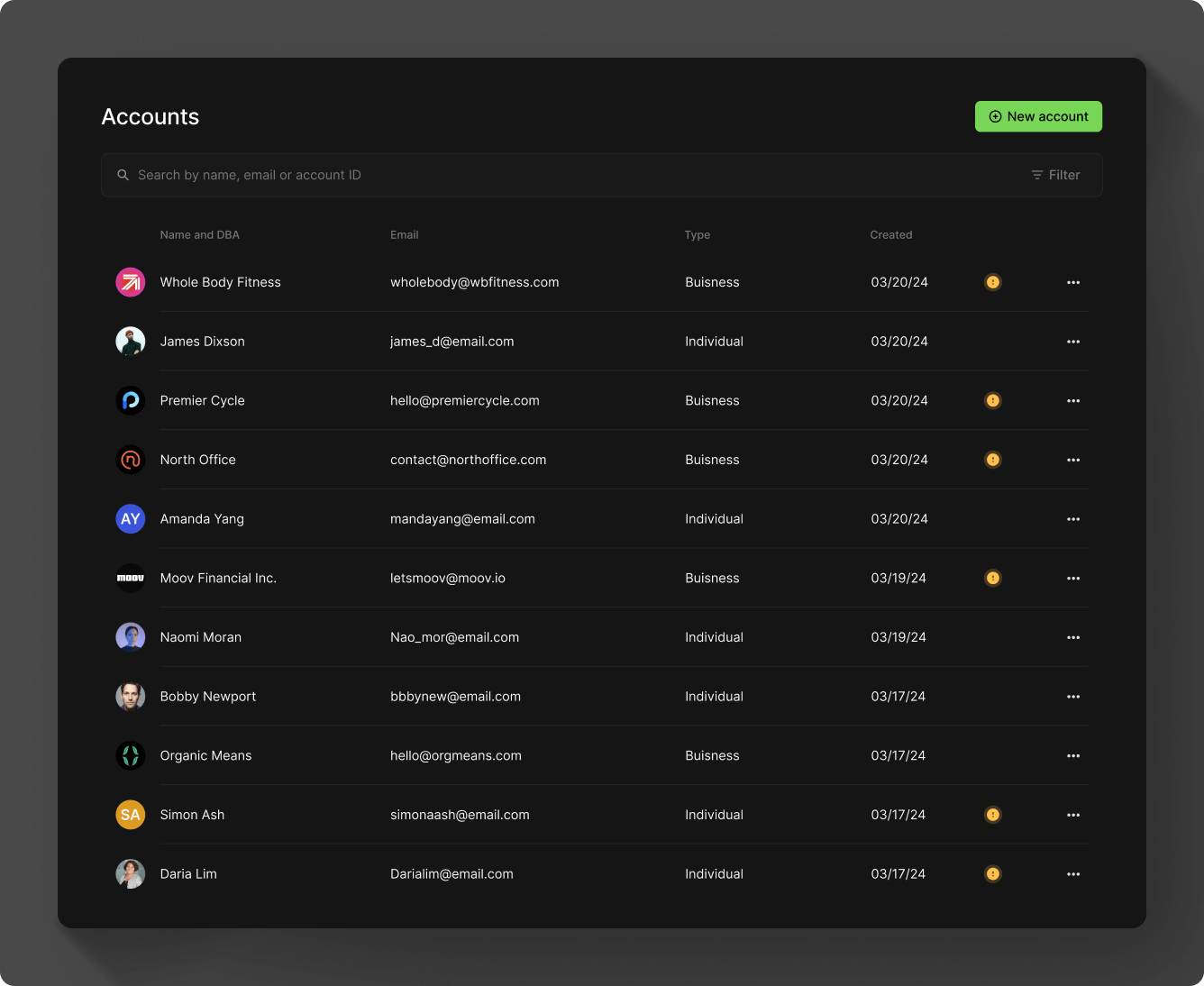
Filter accounts
Filter accounts by capability and capability status. Combine the two filters to view a variety of account list combinations, such as all accounts with the send funds capability enabled.
You can also filter by accounts that require action. If you see an ! indicator in an account row, click the indicator to find details about what action is needed, such as missing documents. You can also open the filter menu to filter all accounts by Action needed.
Peek preview
The peek preview shortcut gives you fast access to account details. Press the space key to toggle the preview on and off. Move your cursor up and down the account list and the preview updates with the corresponding account details. The esc key also dismisses the preview. Press c while the preview is open to copy the accountID to your clipboard.
Overview
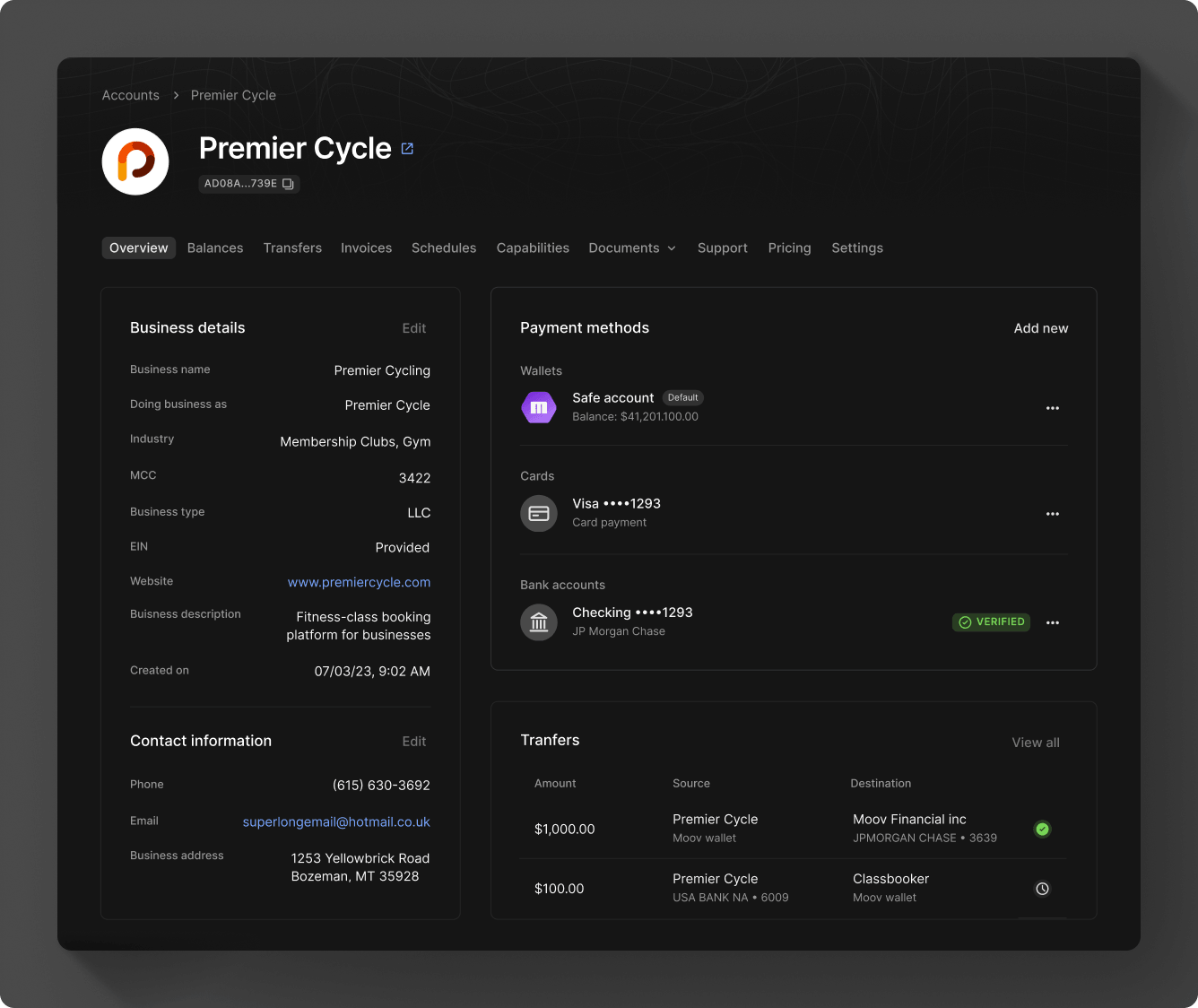
Click into an account to see details. On the Overview tab, you'll see all the data you've collected about the legal entity, its transfer activity, and its available payment methods. This is also where you can view information about business representatives for a business account.
All business accounts must have business representatives on file, including at least one control officer. For certain business types, Moov needs information on everyone who owns 25% or more of the company. See the business representatives guide for more details.
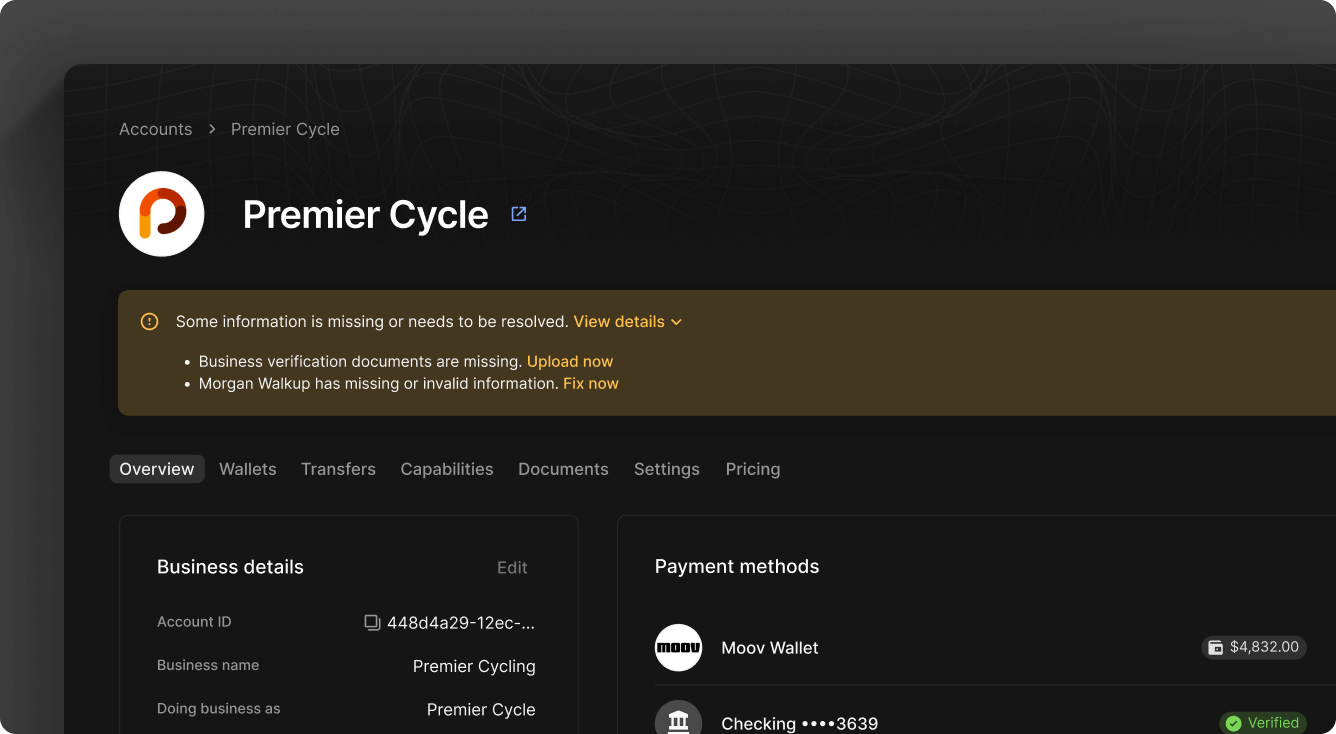
Accounts with errors or missing capability requirements show an orange banner at the top of the overview tab. Click View details or other instructions next to any listed error to address the issue, or send a resolution link.
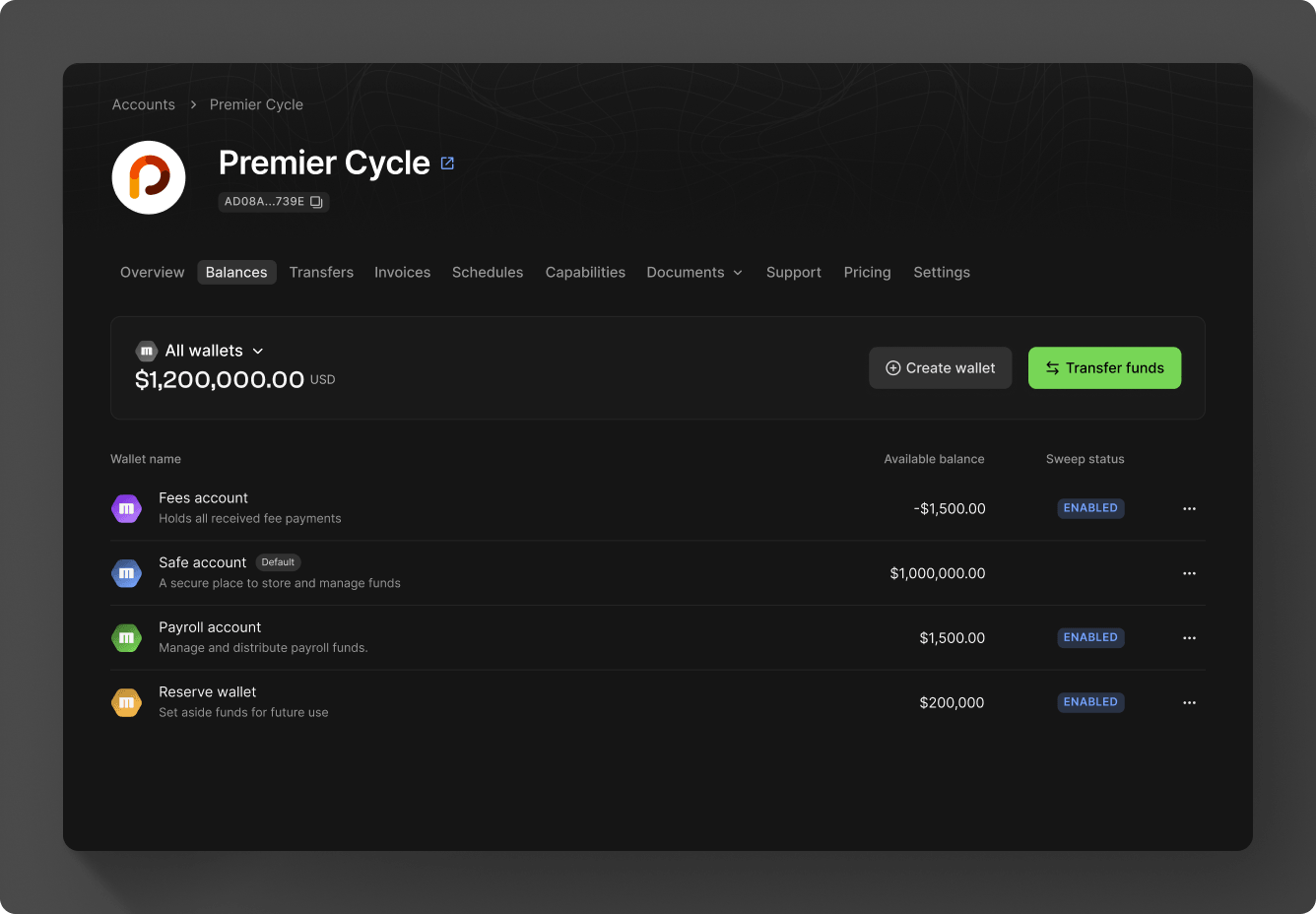
Balances
Under the Balances tab, view wallets and their balances. You can cash out or add funds, and view, filter, and search wallet transactions.
Transfers
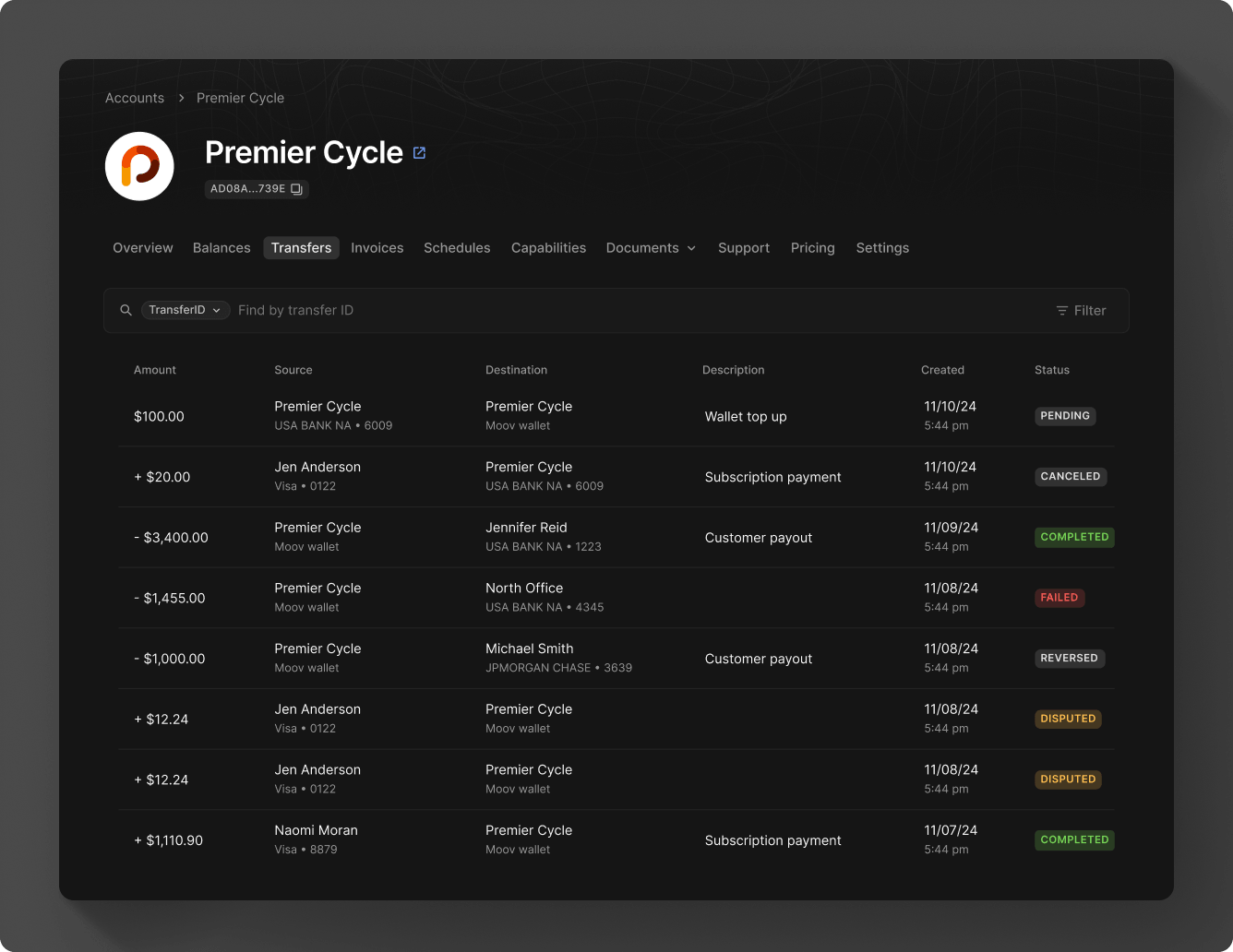
Under the Transfers tab, view all transfers associated with an account. Search by transfer ID, schedule ID, or group ID, or use the filters to search for transfers within a specific date range or status.
Invoices
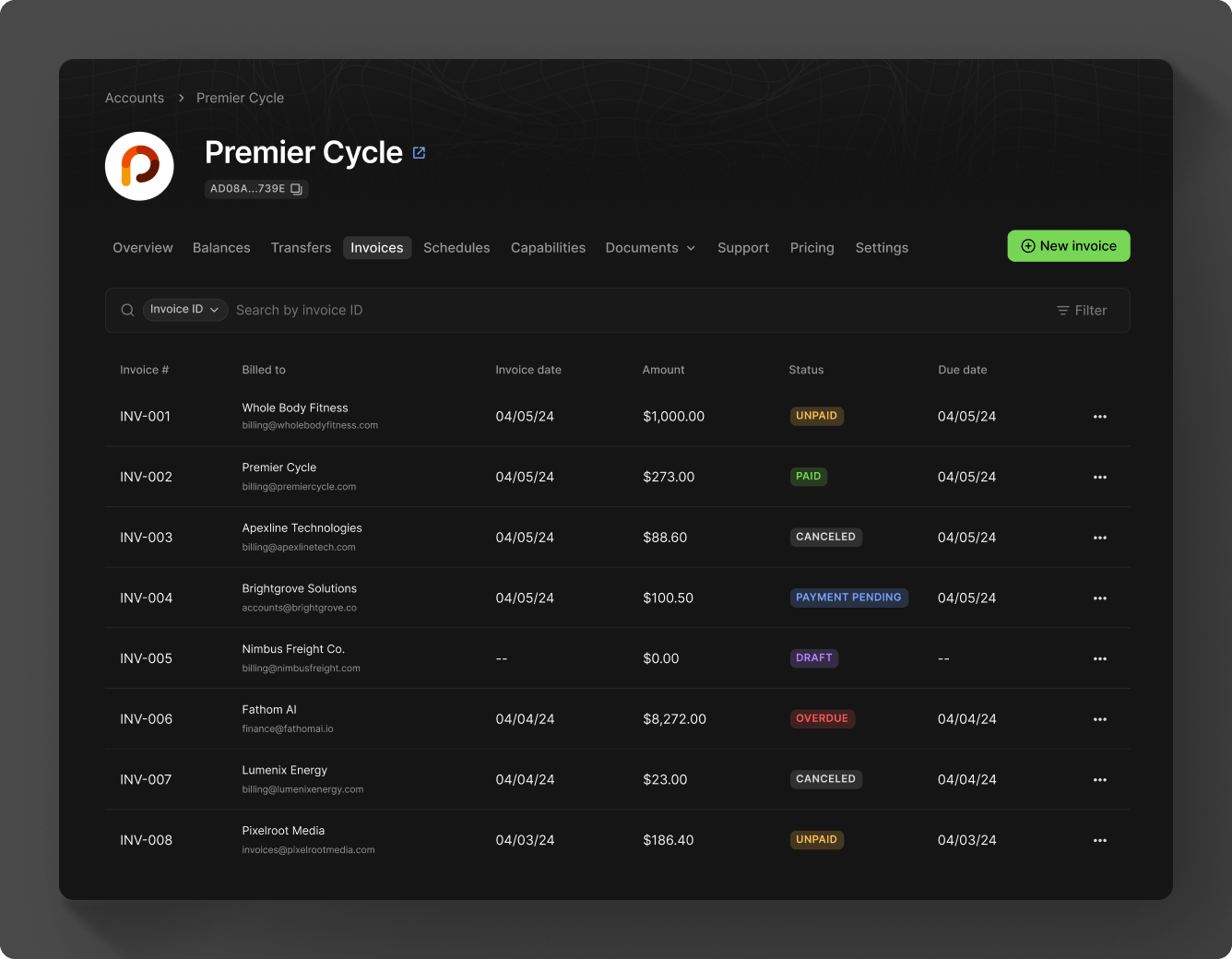
Under the Invoices tab, view invoices associated with an account. Search by invoice ID or customer account ID, or use the filters to search for invoices within a specific date range or status.
Schedules
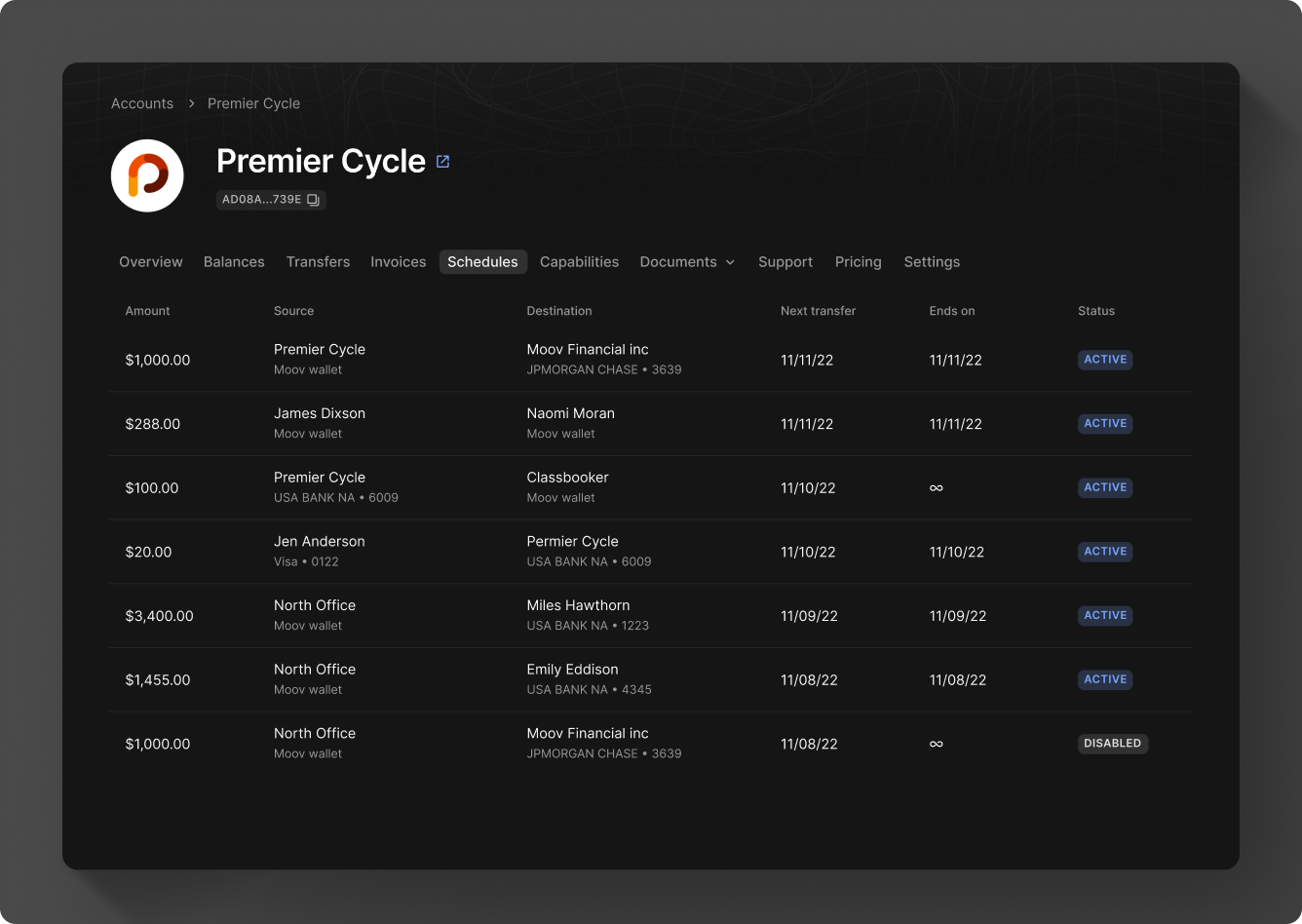
Under the Schedules tab, view schedules associated with an account.
Spending cards
Under the Spending cards tab, view and manage spending cards associated with an account.
Capabilities
Under the Capabilities tab, view capability requests along with the outstanding data requirements and the status of each capability. You can also manually request or unrequest a capability. See the capabilities guide for details about each capability and its information requirements.
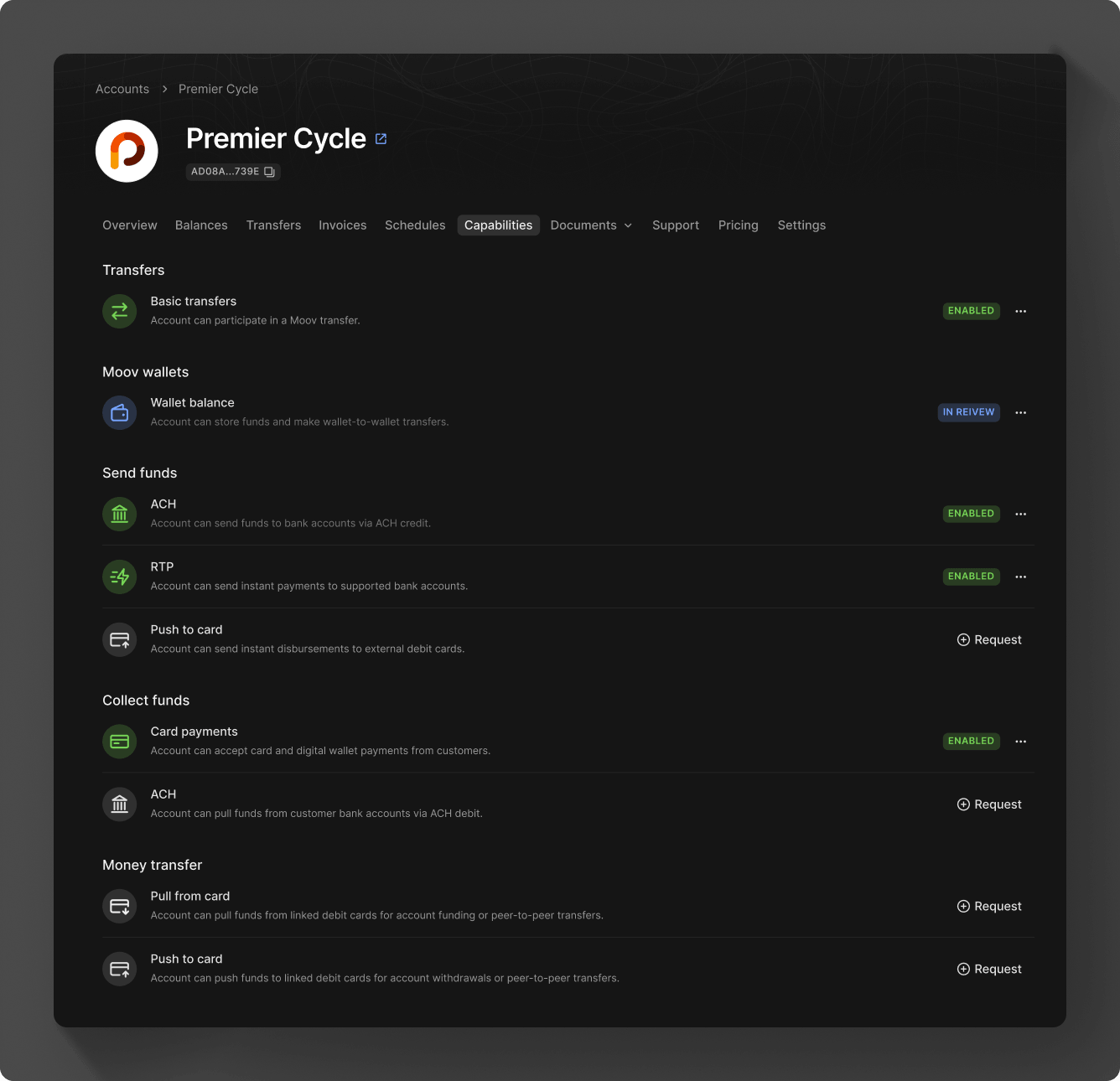
pending due to missing information, you'll be notified on the capabilities page. Click View missing requirements for guidance on what information you need to provide before the capability is enabled.
Documents
Under the Documents tab, find onboarding and statement documents. You can upload new onboarding documents, such as individual identity verification and business underwriting. You may need to provide certain documents to enable capabilities. File limits, review statuses, and who can view uploads are covered in documents.
To upload documents to your own account, navigate to Settings > Documents in the Dashboard.
Settings
For each account, under the Settings tab, you can:
- Manage contact details
- Manage transfer settings
- Manage metadata
- View platform scopes
- View IDs
- Manage automatic sweeps
- Disconnect the account
- Set tipping presets
- Register domains with Apple Pay
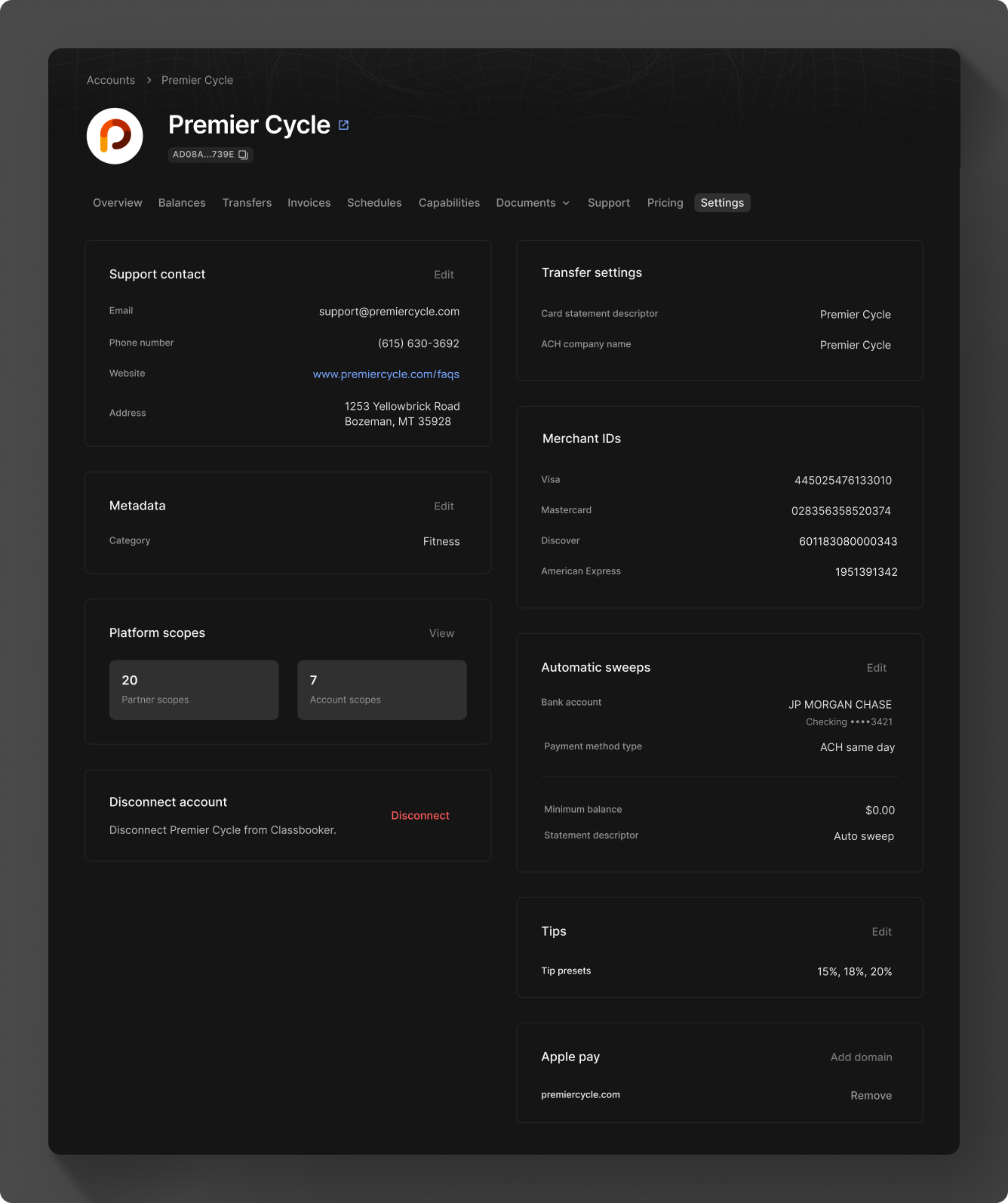
Transfer settings
Set an optional override for the card statement descriptor and ACH company name, both of which are visible on the end user's bank statement.
Tipping
Enable payment link tipping for an account and set its tip presets.
An account with Dashboard access can turn on or update tip presets in their own settings. Changes an account holder makes within their own Dashboard override any existing tip settings you may have set for them.

Once tipping is set up in settings, the account must also enable it when creating a payment link under Advanced options. See tipping for more information.
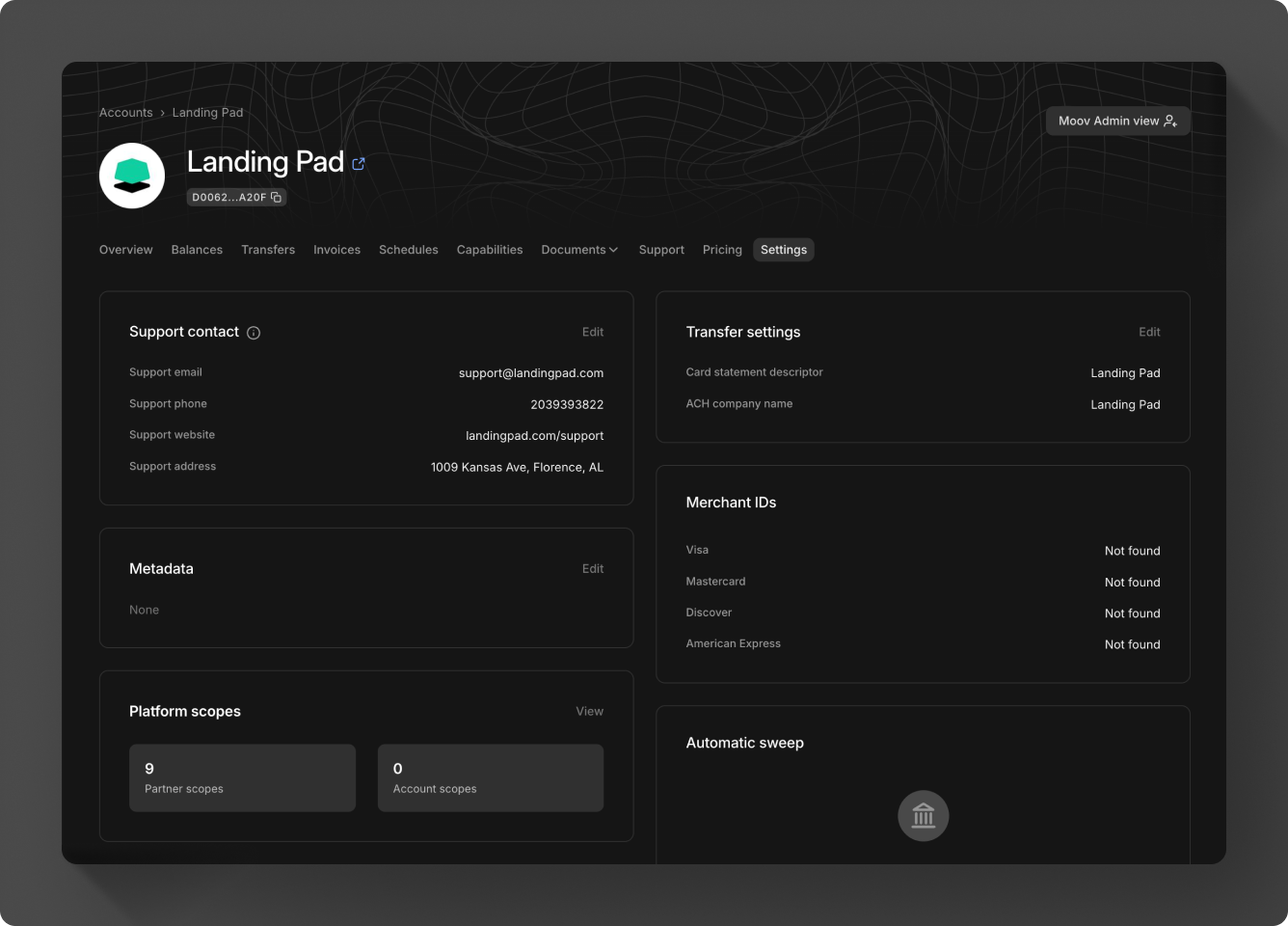
Platform scopes
Platform scopes are selected for each Moov account during the hosted onboarding process. Click View to see the scopes enabled for an account. Scopes cannot be edited after the new account has gone through onboarding.
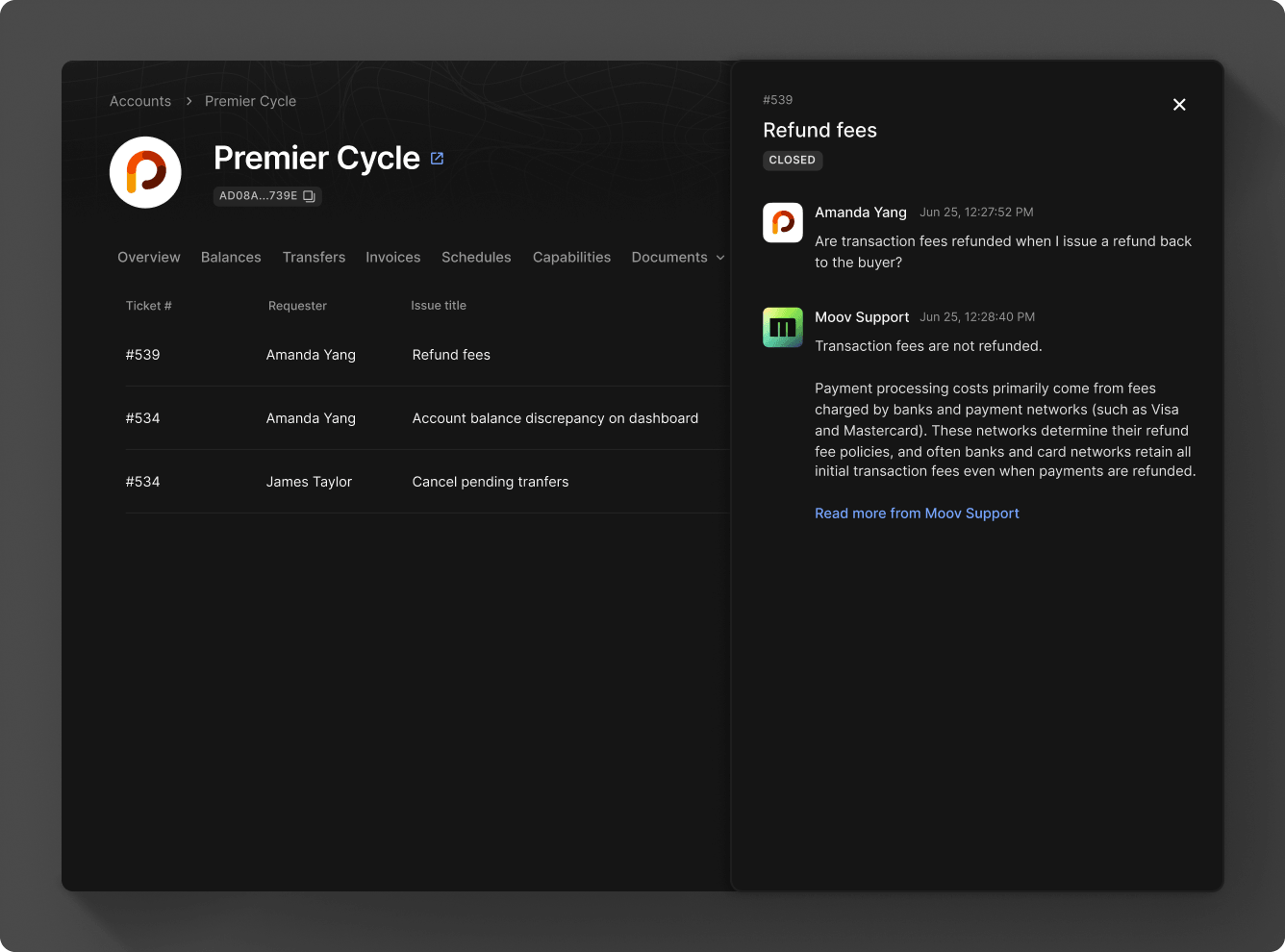
Support
Under the Support tab, view support tickets and their status. View an individual ticket to see messages associated with that ticket.
Pricing
Under the Pricing tab, set up or view details of an account's fee plan. The easiest way to add a fee plan to an account is through hosted onboarding. The account holder is required to view and agree to the plan before it can go into effect. See the billing & fees guides for more information.
