Scheduled transfers
Each occurrence becomes a normal transfer on its run date, using the source and destination payment methods you set, and reports the usual transfer statuses. You need the same payment methods and capabilities as a one-time transfer.
Set up a schedule
You can set up a schedule of future-dated transfers in a combination of ways - by generating a schedule through Moov, or by providing your own specific future dates.
Provide transfer details and a recurrence rule for Moov to generate each occurrence of a transfer dated for the future. The recurrenceRule accepts a string that conforms to the RRULE. This option is useful for creating a schedule that continues indefinitely or until a date or count where all transfer details are the same.
For the account being charged, use the create a schedule POST endpoint.
 1{
 2  "description": "Monthly subscription",
 3  "recur": {
 4    "recurrenceRule": "FREQ=MONTHLY;COUNT=36",
 5    "runTransfer": {
 6      "amount": {
 7        "currency": "USD",
 8        "value": 1000
 9      },
10      "accountID": "your-account-ID",
11      "source": {
12        "paymentMethodID": "payment-method-ID"
13      },
14      "destination": {
15        "paymentMethodID": "payment-method-ID"
16      }
17    }
18  }
19}
A recurrence rule is typically made up of the following:
FREQ- frequency (daily, weekly, monthly) (required)INTERVAL- interval (1, 2, etc)DTSTART- The recurrence start dateUNTIL- The recurrence end date. Not present if indefiniteCOUNT- The number of occurrences that will be generated. Not present if indefinite
Once DTSTART is set it should not be changed as it can cause unintended changes to occurrence timing. We suggest you set it to a static value you can continuously use when creating schedules, or leave it empty, which will allow Moov to use our own static value.
Create the occurrences of each transfer with a specific date for Moov to initiate them. This option is recommended if the transfer details differ between any occurrences, or if the recurring dates don't follow a pattern supported by RRULE.
For the account being charged, create a schedule using POST /accounts/{accountID}/schedules
 1{
 2  "description": "Repayment",
 3  "occurrences": [
 4    {
 5      "runOn": "datetime",
 6      "runTransfer": {
 7        "amount": {
 8          "currency": "USD",
 9          "value": 1000
10        },
11        "source": {
12          "paymentMethodID": "payment-method-ID"
13        },
14        "destination": {
15          "paymentMethodID": "payment-method-ID"
16        }
17      }
18    }
19  ]
20}
Add one object to the occurrences array for each remaining transfer.
It's possible to combine recur and occurrences into a single schedule, such as for a one-time charge along with scheduled transfers.
Update or cancel a schedule
Use the update a schedule endpoint to:
- Modify or cancel a future individual occurrences.
- Change the recurrence rule. Future occurrences will shift according to the new rule.
- Add a new one time occurrence. For example, a fine, or to retry a failed occurrence.
- Update the transfer or
runOntime of an individual occurrence. - Update one transfer in a set of recurring transfers and have the updates apply to all future recurring occurrences.
Once created, a schedule can be updated to modify or remove individual occurrences, as well as stop any future transfers from being created. However, transfers that have already been created from a schedule will not be canceled by updating a schedule. Occurrences past the runOn time cannot be changed.
Only the account that creates the schedule can modify it. An ownerAccountID is returned in the create response for reference. This ID will correspond to the partnerAccountID or merchantAccountID of the account that created the schedule.
You can list all schedules for an account with the GET /accounts/{accountID}/schedules endpoint. This is useful for displaying any scheduled payments to a user, such as the next payment date and amount.
Send receipts
Use the transfers API to send a receipt to the payer after each transfer in the schedule has been initiated. By passing forScheduleID in the receipt creation endpoint, you can link the receipt to the schedule and Moov will send receipts automatically for each future occurrence.
Send a receipt to the payer after a transfer has been initiated.
API reference for sending receipts.
Keep payment methods current
For debit and credit card payments that have card-on-file enabled, any issuer updates to the card will allow future-dated transfers to process.
Card-based transfers in a schedule are also automatically set with the correct transactionSource specifying first-recurring or recurring.
Likewise, for bank accounts, if Moov receives a notice of change from the receiving financial institution, the bank account will be automatically updated to prevent interruption.
In the Dashboard
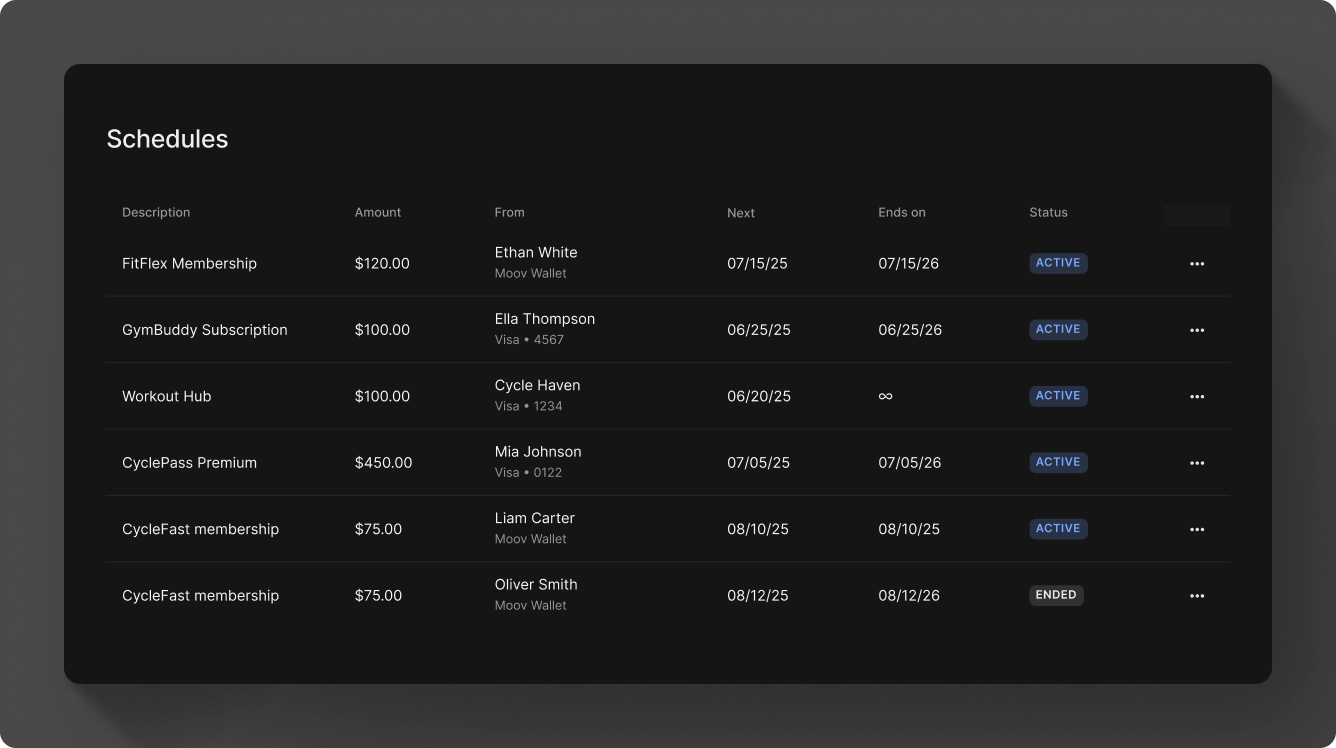
Navigate to Transfers > Schedules in the Dashboard. A scheduled transfer can be a single transfer scheduled in the future, or a series of recurring transfers. Once scheduled transfers have been set up, the main schedules view shows the transfer description (if provided), amount, source and destination accounts, next scheduled transfer date, and when the schedule cycle ends.
Scheduled and recurring transfers are optional. If you don't select a future date or set up a recurring schedule when creating a transfer, the transfer will be created immediately and processed under normal batch processing windows.
Create a schedule in the Dashboard
Click the New schedule button to create a new transfer with a schedule. Select a product or enter an amount and provide the source and destination information. With both of the following options, transfers will be created the next business day if initiated outside of the batch processing window.
-
Select a date in the future to send a single transfer. Under Schedule transfer use the selector to pick a future date on the calendar.

-
Set up recurring transfers on a daily, weekly, monthly, or yearly schedule. Under Recurring payments select the recurrence cadence and choose when you want the recurring payments to end, or select Never to keep the payments recurring indefinitely.
View details and send receipts
Click on a scheduled transfer row to view the details, such as the source, destination, and when the schedule was originally created. Every scheduled or recurring transfer has a schedule ID, which you can copy from the row menu or from within the details view.
Once a scheduled or recurring transfer is processed, open the individual transfer and click Send receipt. You can find the individual transfer within the main Transfers view, or click a schedule in the Schedules view to see all associated transfers.
Cancel a schedule
Click on the menu at the end of a transfer row, or open the details view, to cancel the schedule. Only the account that creates the schedule can cancel it. For example, if a merchant creates a schedule, only the merchant account is able to cancel that schedule. Transfers already created from the schedule are not canceled.