Wallet balance
availableBalance is the money the account can move right now. Transfers out of a wallet reduce it immediately; incoming funds count only once their wallet transaction is completed.
Empty or negative wallets don't incur fees, but a negative balance limits the account's ability to move funds until it's covered.
Check a balance with the API
Provide the walletID and/or accountID path parameters to the following endpoints to view a wallet's balance:
- List wallets - Lists all wallets associated with an account
- Retrieve a wallet - Gets details of a specific wallet
The response will contain the availableBalance object.
An account ID (also referred to as X-Account-ID) can be found in the Dashboard by navigating to Settings > Business details. Your account ID will be listed at the top of the Business details section and you can copy it to your clipboard.
Navigate to the Wallet section of the Dashboard and click the menu option in the wallet summary section. You'll be able to copy the wallet ID to your clipboard. You can also retrieve a wallet ID by providing accountID to the list payment methods GET endpoint.
Avoid a negative balance
Moov will use an account's wallet to settle refunds, disputes, ACH reversals and Moov fees, which could result in a negative balance.
For example, an ACH debit can be returned and the transfer reversed up to 60 calendar days after it was created; Moov deducts the amount from the wallet that received the funds. To stay covered:
- Keep a minimum balance and set a
pullPaymentMethodIDon the wallet's sweep so Moov debits a bank account when the balance goes negative - Watch
balance.updatedwebhooks and fund the wallet when it drops below what you need
See ACH returns for return scenarios.
Get notified of balance changes
Subscribe to the wallet balance.updated event to be notified of balance changes. See the event payload.
In the Dashboard
Navigate to the Balances section of the Dashboard to manage your wallets and view your available balance. Select a wallet from the list to view all wallet transactions. Each account has a default wallet and can have additional general wallets, each with its own balance and transaction history. See multiple wallets for details.
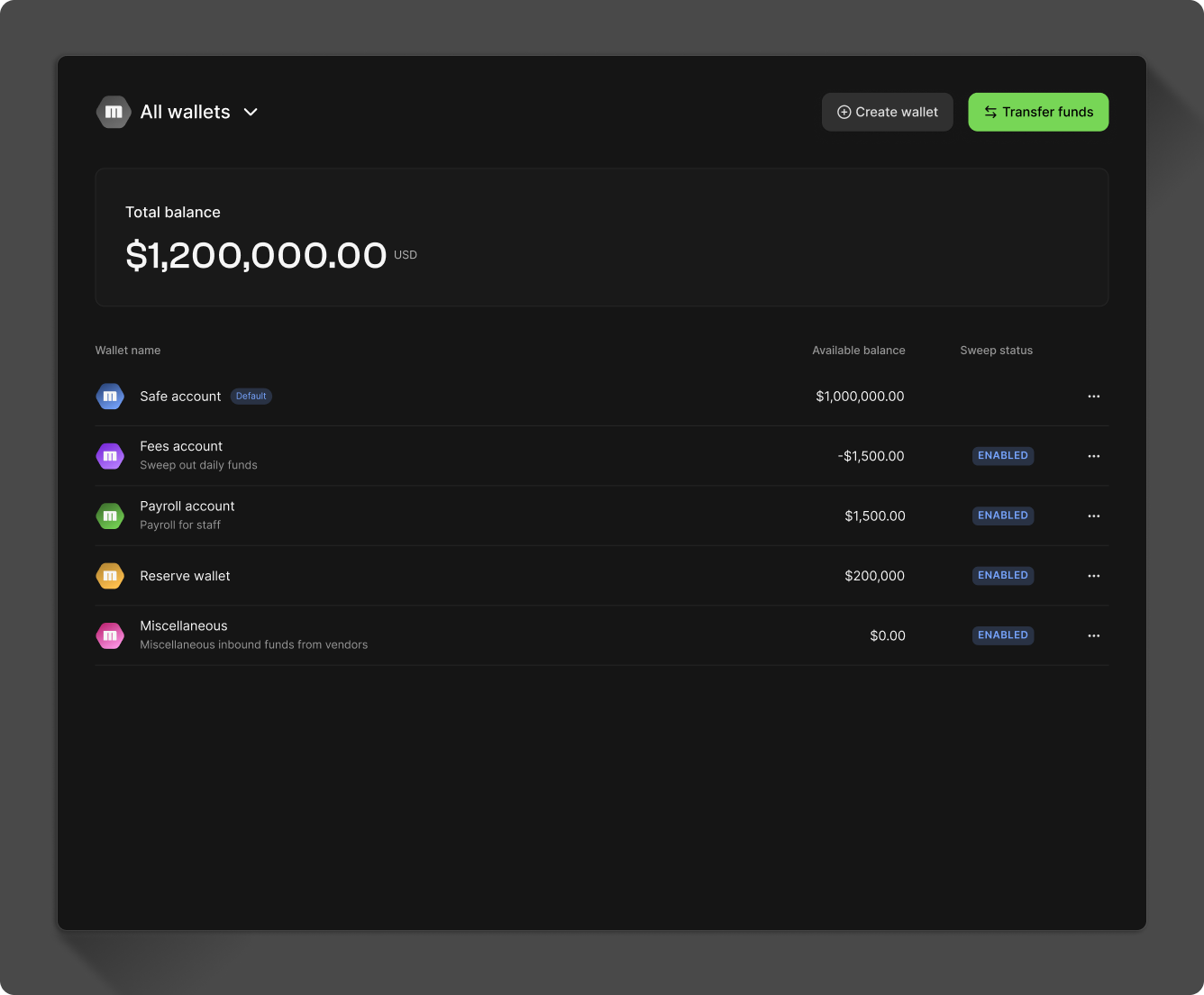
Create a wallet
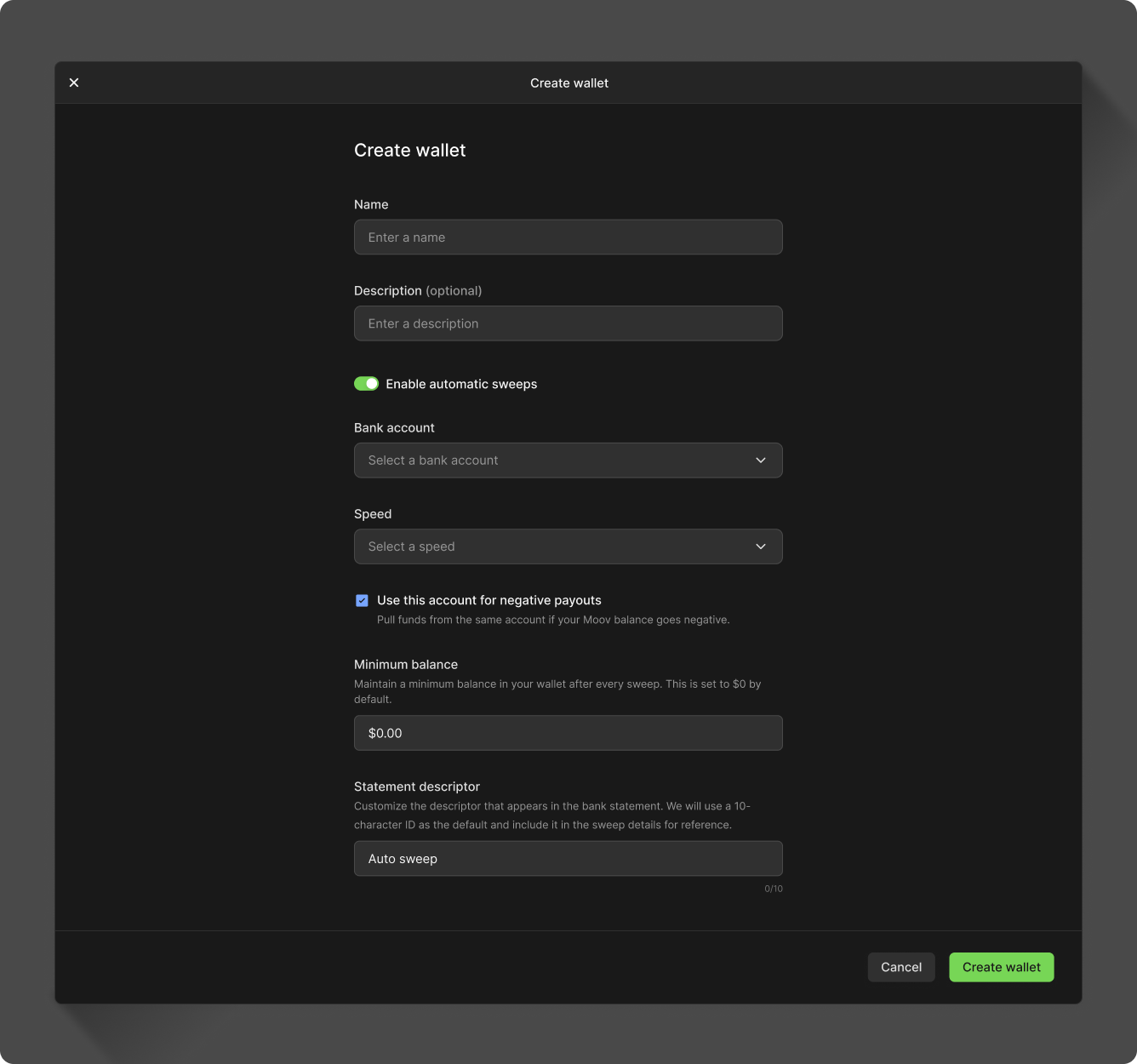
On the main balances view, click Create wallet. Give the wallet a name and description. If you enable automated payouts (sweeps), you'll also be able to:
- Select or add a bank account
- Choose a processing speed
- Set a minimum balance (optional)
- Set a custom statement descriptor (optional)
Edit a wallet
Select any general wallet and click Edit wallet. In addition to updating the name and description of the wallet, you can enable automated payouts.
Close a wallet
If you choose to close a wallet, it will become permanently disabled, as will the corresponding payment method. To close a wallet, the following criteria need to be met:
- No pending inbound transfers
- Balance is zero and has no activity in the past 75 days
- Must be a general wallet (default wallets cannot be closed)
Closing a wallet is permanent and cannot be undone. While it has no impact on data retention for past transactions, a closed wallet may still incur transactions from exceptions like disputes or refunds, which could result in a negative balance. Ensure any negative balances are resolved in a timely manner.
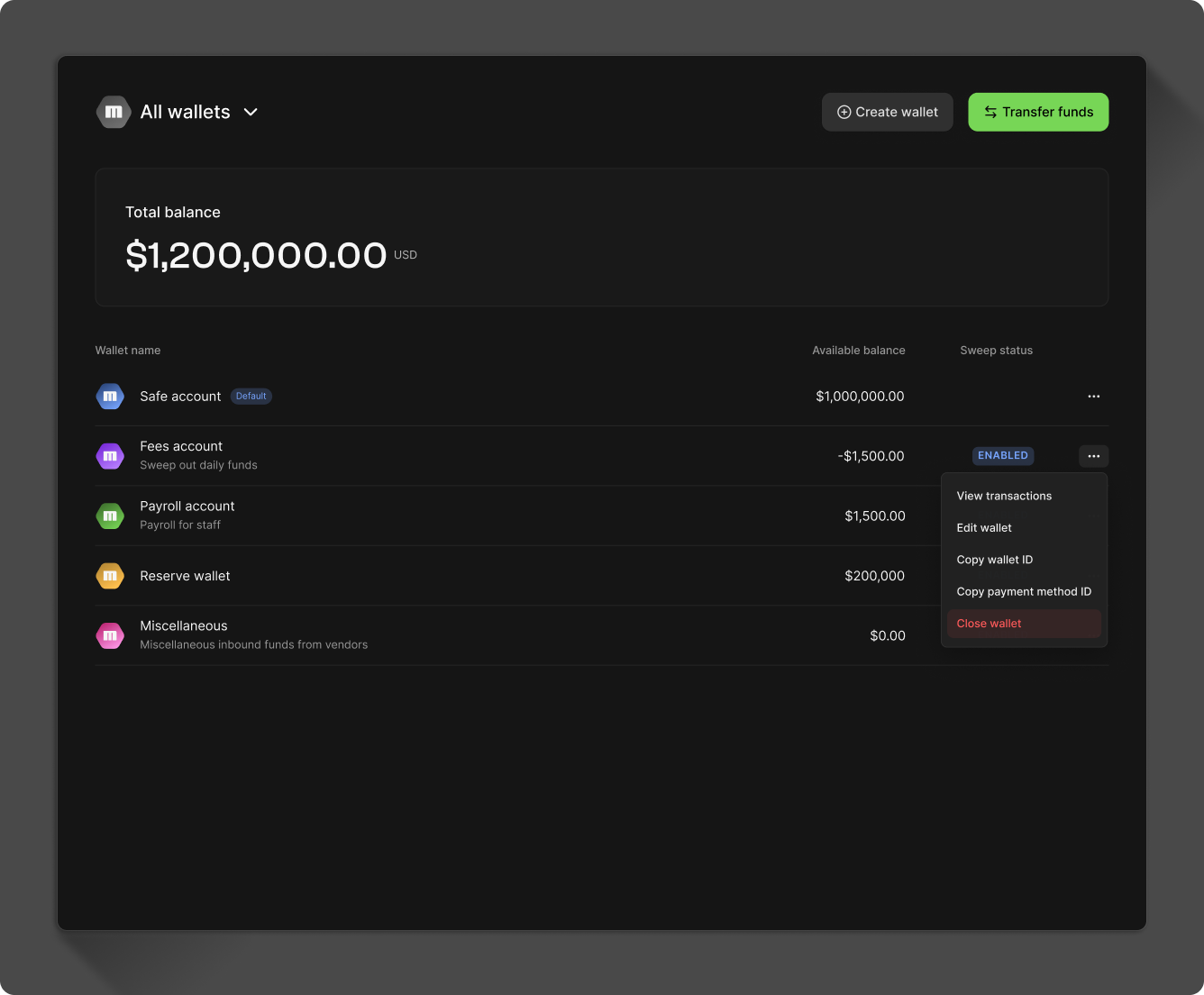
Open the wallet's menu and select Close wallet.
Automated payouts
A sweep automatically initiates daily transfers to external bank accounts on a set schedule. Enabling sweeps will either pay out funds from a wallet or pull funds to cover fees and chargebacks. You can configure sweeps from multiple places in the Dashboard, such as editing a wallet or navigating to an account's settings page.
Once you've enabled sweeps, you'll see the menu option to view automated payouts directly below the wallet balance. Expanding the menu will show you:
- Upcoming payouts
- Payout transactions
- Associated bank account
A sweep's daily Accrued amount is what typically can be expected to transfer to the associated bank account. However, when a sweep is first enabled, or a minimum balance is first set, Moov calculates the Transfer amount from the wallet's available balance in order to maintain the balance in the configuration:
transferAmount = availableBalance at sweep close - minimumBalance
See the sweeps guide for information about reconciliation, negative sweeps, and failures.
Transactions in the Dashboard
The transaction list overview will show you the date, type, memo, amount, and remaining wallet balance for each transaction.
Click on an individual transaction to see more detail, such as the transaction source, destination, and ID. Click See details in the transaction source section to enter the Transfers section of the Dashboard, where you can view all the details associated with the transfer.
By default, the list shows all transactions, but you can quickly filter for just completed or pending transactions. You can also use the search bar to search by source or sweep ID. Additional filters can be accessed by clicking on the Filter menu. You can filter by one or multiple transaction types, as well as specify date ranges.