Product catalog
Use the product API to create a product catalog for transfers and payment links. For each product, you can specify an image, title, description, and base price. You can also set additional option groups like size and color, each with their own images and additional price modifiers.
For example, a cafe has a product catalog that contains each of the drinks on their menu. Each drink product has an option group set up for alternative milk choices which adds a price modifier to the overall cost.
Create a product
To create a new product for the catalog, pass the accountID and specify a title and base price. Additionally, you can specify a description, an image, and option groups. The example below creates a lunch special with an option group that has price modifications for alternative milks.
You can upload and store images with Moov.
categoryID is supported in API v2026.07.00 and higher. isTaxable is supported in API v2026.10.00 and higher.
curl -X POST "https://api.moov.io/accounts/{accountID}/products" \
  -H "Authorization: Bearer {token}" \
  -H "x-moov-version: v2026.07.00" \
  --data '{
    "basePrice": {
      "currency": "USD",
      "valueDecimal": "14.95"
    },
    "title": "Monday lunch special 1",
    "categoryID": "ccadd123-4e06-47ab-207a-e8753cd4c02a",
    "description": "Sandwich, chips, latte",
    "images": [
      {
        "imageID": "bbdcb050-2e05-43cb-812a-e1296cd0c01a"
      }
    ],
    "optionGroups": [
      {
        "description": "Alternative milk options",
        "name": "Milk options",
        "minSelect": 0,
        "maxSelect": 1,
        "options": [
          {
            "description": "Fancy brand oat milk",
            "images": [
              {
                "imageID": "bccbd070-3e04-45cd-603b-b1496cb0c01b"
              }
            ],
            "name": "Oat milk",
            "priceModifier": {
              "currency": "USD",
              "valueDecimal": "1.00"
            }
          },
          {
            "description": "Fancy brand almond milk",
            "images": [
              {
                "imageID": "bbdcb060-3e07-88cb-802a-e3295cd0c01c"
              }
            ],
            "name": "Almond milk",
            "priceModifier": {
              "currency": "USD",
              "valueDecimal": "1.00"
            }
          }
        ]
      }
    ]
  }'
const result = await moov.products.create({
  accountID: "27cd3181-7c1c-4d81-b020-e7d55c33941f",
  productRequest: {
    title: "World's best lemonade",
    description: "Really, the best.",
    basePrice: {
      currency: "USD",
      valueDecimal: "4.99",
    },
    images: [
      {
        imageID: "fed91252-6f48-4b70-885e-520bf53a52ff",
      },
      {
        imageID: "eb466644-0a58-4b87-af1e-94d03e223ad2",
      },
    ],
    optionGroups: [
      {
        name: "Flavor add-ins",
        description: "Choose up to 3 flavor add-ins to enhance your lemonade.",
        minSelect: 0,
        maxSelect: 3,
        options: [
          {
            name: "Strawberry puree",
            description: "Fresh and fruity.",
            priceModifier: {
              currency: "USD",
              valueDecimal: "0.99",
            },
            images: [
              {
                imageID: "d359808d-9896-4414-8d17-dac43f35842d",
              },
            ],
          },
          {
            name: "Passionfruit syrup",
            priceModifier: {
              currency: "USD",
              valueDecimal: "0.49",
            },
          },
          {
            name: "Cherry syrup",
            priceModifier: {
              currency: "USD",
              valueDecimal: "0.49",
            },
          },
        ],
      },
      {
        name: "Sweetener",
        description: "Choose a sweetener for your lemonade.",
        minSelect: 1,
        maxSelect: 1,
        options: [
          {
            name: "Cane Sugar",
          },
          {
            name: "Honey",
            priceModifier: {
              currency: "USD",
              valueDecimal: "0.99",
            },
          },
          {
            name: "Stevia",
            description: "Natural, zero-calorie sweetener.",
          },
        ],
      },
    ],
  },
});
res = moov.products.create(account_id="27cd3181-7c1c-4d81-b020-e7d55c33941f", title="World's best lemonade", base_price={
    "currency": "USD",
    "value_decimal": "4.99",
}, description="Really, the best.", images=[
    {
        "image_id": "fed91252-6f48-4b70-885e-520bf53a52ff",
    },
    {
        "image_id": "eb466644-0a58-4b87-af1e-94d03e223ad2",
    },
], option_groups=[
    {
        "name": "Flavor add-ins",
        "description": "Choose up to 3 flavor add-ins to enhance your lemonade.",
        "min_select": 0,
        "max_select": 3,
        "options": [
            {
                "name": "Strawberry puree",
                "description": "Fresh and fruity.",
                "price_modifier": {
                    "currency": "USD",
                    "value_decimal": "0.99",
                },
                "images": [
                    {
                        "image_id": "d359808d-9896-4414-8d17-dac43f35842d",
                    },
                ],
            },
            {
                "name": "Passionfruit syrup",
                "price_modifier": {
                    "currency": "USD",
                    "value_decimal": "0.49",
                },
            },
            {
                "name": "Cherry syrup",
                "price_modifier": {
                    "currency": "USD",
                    "value_decimal": "0.49",
                },
            },
        ],
    },
    {
        "name": "Sweetener",
        "description": "Choose a sweetener for your lemonade.",
        "min_select": 1,
        "max_select": 1,
        "options": [
            {
                "name": "Cane Sugar",
            },
            {
                "name": "Honey",
                "price_modifier": {
                    "currency": "USD",
                    "value_decimal": "0.99",
                },
            },
            {
                "name": "Stevia",
                "description": "Natural, zero-calorie sweetener.",
            },
        ],
    },
])
res = s.products.create(account_id: '27cd3181-7c1c-4d81-b020-e7d55c33941f', product_request: Models::Components::ProductRequest.new(
  title: 'World\'s best lemonade',
  description: 'Really, the best.',
  base_price: Models::Components::AmountDecimal.new(
    currency: 'USD',
    value_decimal: '4.99'
  ),
  images: [
    Models::Components::AssignProductImage.new(
      image_id: 'fed91252-6f48-4b70-885e-520bf53a52ff'
    ),
    Models::Components::AssignProductImage.new(
      image_id: 'eb466644-0a58-4b87-af1e-94d03e223ad2'
    ),
  ],
  option_groups: [
    Models::Components::CreateProductOptionGroup.new(
      name: 'Flavor add-ins',
      description: 'Choose up to 3 flavor add-ins to enhance your lemonade.',
      min_select: 0,
      max_select: 3,
      options: [
        Models::Components::CreateProductOption.new(
          name: 'Strawberry puree',
          description: 'Fresh and fruity.',
          price_modifier: Models::Components::AmountDecimal.new(
            currency: 'USD',
            value_decimal: '0.99'
          ),
          images: [
            Models::Components::AssignProductImage.new(
              image_id: 'd359808d-9896-4414-8d17-dac43f35842d'
            ),
          ]
        ),
        Models::Components::CreateProductOption.new(
          name: 'Passionfruit syrup',
          price_modifier: Models::Components::AmountDecimal.new(
            currency: 'USD',
            value_decimal: '0.49'
          )
        ),
        Models::Components::CreateProductOption.new(
          name: 'Cherry syrup',
          price_modifier: Models::Components::AmountDecimal.new(
            currency: 'USD',
            value_decimal: '0.49'
          )
        ),
      ]
    ),
    Models::Components::CreateProductOptionGroup.new(
      name: 'Sweetener',
      description: 'Choose a sweetener for your lemonade.',
      min_select: 1,
      max_select: 1,
      options: [
        Models::Components::CreateProductOption.new(
          name: 'Cane Sugar'
        ),
        Models::Components::CreateProductOption.new(
          name: 'Honey',
          price_modifier: Models::Components::AmountDecimal.new(
            currency: 'USD',
            value_decimal: '0.99'
          )
        ),
        Models::Components::CreateProductOption.new(
          name: 'Stevia',
          description: 'Natural, zero-calorie sweetener.'
        ),
      ]
    ),
  ]
))
CreateProductResponse res = sdk.products().create()
        .accountID("27cd3181-7c1c-4d81-b020-e7d55c33941f")
        .productRequest(ProductRequest.builder()
            .title("World's best lemonade")
            .basePrice(AmountDecimal.builder()
                .currency("USD")
                .valueDecimal("4.99")
                .build())
            .description("Really, the best.")
            .images(List.of(
                AssignProductImage.builder()
                    .imageID("fed91252-6f48-4b70-885e-520bf53a52ff")
                    .build(),
                AssignProductImage.builder()
                    .imageID("eb466644-0a58-4b87-af1e-94d03e223ad2")
                    .build()))
            .optionGroups(List.of(
                CreateProductOptionGroup.builder()
                    .name("Flavor add-ins")
                    .minSelect(0)
                    .maxSelect(3)
                    .options(List.of(
                        CreateProductOption.builder()
                            .name("Strawberry puree")
                            .description("Fresh and fruity.")
                            .priceModifier(AmountDecimal.builder()
                                .currency("USD")
                                .valueDecimal("0.99")
                                .build())
                            .images(List.of(
                                AssignProductImage.builder()
                                    .imageID("d359808d-9896-4414-8d17-dac43f35842d")
                                    .build()))
                            .build(),
                        CreateProductOption.builder()
                            .name("Passionfruit syrup")
                            .priceModifier(AmountDecimal.builder()
                                .currency("USD")
                                .valueDecimal("0.49")
                                .build())
                            .build(),
                        CreateProductOption.builder()
                            .name("Cherry syrup")
                            .priceModifier(AmountDecimal.builder()
                                .currency("USD")
                                .valueDecimal("0.49")
                                .build())
                            .build()))
                    .description("Choose up to 3 flavor add-ins to enhance your lemonade.")
                    .build(),
                CreateProductOptionGroup.builder()
                    .name("Sweetener")
                    .minSelect(1)
                    .maxSelect(1)
                    .options(List.of(
                        CreateProductOption.builder()
                            .name("Cane Sugar")
                            .build(),
                        CreateProductOption.builder()
                            .name("Honey")
                            .priceModifier(AmountDecimal.builder()
                                .currency("USD")
                                .valueDecimal("0.99")
                                .build())
                            .build(),
                        CreateProductOption.builder()
                            .name("Stevia")
                            .description("Natural, zero-calorie sweetener.")
                            .build()))
                    .description("Choose a sweetener for your lemonade.")
                    .build()))
            .build())
        .call();
var res = await sdk.Products.CreateAsync(
    accountID: "27cd3181-7c1c-4d81-b020-e7d55c33941f",
    body: new ProductRequest() {
        Title = "World's best lemonade",
        Description = "Really, the best.",
        BasePrice = new AmountDecimal() {
            Currency = "USD",
            ValueDecimal = "4.99",
        },
        Images = new List<AssignProductImage>() {
            new AssignProductImage() {
                ImageID = "fed91252-6f48-4b70-885e-520bf53a52ff",
            },
            new AssignProductImage() {
                ImageID = "eb466644-0a58-4b87-af1e-94d03e223ad2",
            },
        },
        OptionGroups = new List<CreateProductOptionGroup>() {
            new CreateProductOptionGroup() {
                Name = "Flavor add-ins",
                Description = "Choose up to 3 flavor add-ins to enhance your lemonade.",
                MinSelect = 0,
                MaxSelect = 3,
                Options = new List<CreateProductOption>() {
                    new CreateProductOption() {
                        Name = "Strawberry puree",
                        Description = "Fresh and fruity.",
                        PriceModifier = new AmountDecimal() {
                            Currency = "USD",
                            ValueDecimal = "0.99",
                        },
                        Images = new List<AssignProductImage>() {
                            new AssignProductImage() {
                                ImageID = "d359808d-9896-4414-8d17-dac43f35842d",
                            },
                        },
                    },
                    new CreateProductOption() {
                        Name = "Passionfruit syrup",
                        PriceModifier = new AmountDecimal() {
                            Currency = "USD",
                            ValueDecimal = "0.49",
                        },
                    },
                    new CreateProductOption() {
                        Name = "Cherry syrup",
                        PriceModifier = new AmountDecimal() {
                            Currency = "USD",
                            ValueDecimal = "0.49",
                        },
                    },
                },
            },
            new CreateProductOptionGroup() {
                Name = "Sweetener",
                Description = "Choose a sweetener for your lemonade.",
                MinSelect = 1,
                MaxSelect = 1,
                Options = new List<CreateProductOption>() {
                    new CreateProductOption() {
                        Name = "Cane Sugar",
                    },
                    new CreateProductOption() {
                        Name = "Honey",
                        PriceModifier = new AmountDecimal() {
                            Currency = "USD",
                            ValueDecimal = "0.99",
                        },
                    },
                    new CreateProductOption() {
                        Name = "Stevia",
                        Description = "Natural, zero-calorie sweetener.",
                    },
                },
            },
        },
    }
);
$productRequest = new Components\ProductRequest(
    title: 'World\'s best lemonade',
    description: 'Really, the best.',
    basePrice: new Components\AmountDecimal(
        currency: 'USD',
        valueDecimal: '4.99',
    ),
    images: [
        new Components\AssignProductImage(
            imageID: 'fed91252-6f48-4b70-885e-520bf53a52ff',
        ),
        new Components\AssignProductImage(
            imageID: 'eb466644-0a58-4b87-af1e-94d03e223ad2',
        ),
    ],
    optionGroups: [
        new Components\CreateProductOptionGroup(
            name: 'Flavor add-ins',
            description: 'Choose up to 3 flavor add-ins to enhance your lemonade.',
            minSelect: 0,
            maxSelect: 3,
            options: [
                new Components\CreateProductOption(
                    name: 'Strawberry puree',
                    description: 'Fresh and fruity.',
                    priceModifier: new Components\AmountDecimal(
                        currency: 'USD',
                        valueDecimal: '0.99',
                    ),
                    images: [
                        new Components\AssignProductImage(
                            imageID: 'd359808d-9896-4414-8d17-dac43f35842d',
                        ),
                    ],
                ),
                new Components\CreateProductOption(
                    name: 'Passionfruit syrup',
                    priceModifier: new Components\AmountDecimal(
                        currency: 'USD',
                        valueDecimal: '0.49',
                    ),
                ),
                new Components\CreateProductOption(
                    name: 'Cherry syrup',
                    priceModifier: new Components\AmountDecimal(
                        currency: 'USD',
                        valueDecimal: '0.49',
                    ),
                ),
            ],
        ),
        new Components\CreateProductOptionGroup(
            name: 'Sweetener',
            description: 'Choose a sweetener for your lemonade.',
            minSelect: 1,
            maxSelect: 1,
            options: [
                new Components\CreateProductOption(
                    name: 'Cane Sugar',
                ),
                new Components\CreateProductOption(
                    name: 'Honey',
                    priceModifier: new Components\AmountDecimal(
                        currency: 'USD',
                        valueDecimal: '0.99',
                    ),
                ),
                new Components\CreateProductOption(
                    name: 'Stevia',
                    description: 'Natural, zero-calorie sweetener.',
                ),
            ],
        ),
    ],
);

$response = $sdk->products->create(
    accountID: '27cd3181-7c1c-4d81-b020-e7d55c33941f',
    productRequest: $productRequest

);
If you want to use a product you've created, you'll need to use the product API to retrieve product data and map it to lineItems when creating transfers and payment links. You can, however, create freeform line items when initiating a transfer or payment link.
Manage products
Once a product catalog has been created, you can retrieve, update, and disable products.
List products
You can list all active products, or retrieve a single active or disabled product.
This endpoint will only return active products.
curl -X GET "https://api.moov.io/accounts/{accountID}/products" \
  -H "Authorization: Bearer {token}" \
  -H "x-moov-version: v2026.07.00"
This endpoint will retrieve an active or disabled product.
curl -X GET "https://api.moov.io/accounts/{accountID}/products/{productID}" \
  -H "Authorization: Bearer {token}" \
  -H "x-moov-version: v2026.07.00"
Update a product
Every part of a product and its options can be updated. Updating a product initiates a complete replacement of the product model, so while only the title and base price are required, any omitted fields will be removed from the model if not included in the update request.
curl -X PUT "https://api.moov.io/accounts/{accountID}/products/{productID}" \
  -H "Authorization: Bearer {token}" \
  -H "x-moov-version: v2026.07.00" \
  --data '{
    "basePrice": {
      "currency": "USD",
      "valueDecimal": "15.05"
    },
    "title": "Monday lunch special 1",
    "description": "Sandwich, chips, latte",
    "images": [
      {
        "imageID": "bbdcb050-2e05-43cb-812a-e1296cd0c01a"
      }
    ],
    "optionGroups": [
      {
        "description": "Alternative milk options",
        "name": "Milk options",
        "minSelect": 0,
        "maxSelect": 1,
        "options": [
          {
            "description": "Fancy brand soy milk",
            "images": [
              {
                "imageID": "bbdcb050-2e05-43cb-812a-e1296cd0c01a"
              }
            ],
            "name": "Oat milk",
            "priceModifier": {
              "currency": "USD",
              "valueDecimal": "1.05"
            }
          },
          {
            "description": "Fancy brand coffee milk",
            "images": [
              {
                "imageID": "bbdcb050-2e05-43cb-812a-e1296cd0c01b"
              }
            ],
            "name": "Almond milk",
            "priceModifier": {
              "currency": "USD",
              "valueDecimal": "1.05"
            }
          }
        ]
      }
    ]
  }'
Disable a product
A disabled product remains in the system for historical and reporting purposes. To disable a product, pass the accountID and productID.
curl -X DELETE "https://api.moov.io/accounts/{accountID}/products/{productID}" \
  -H "Authorization: Bearer {token}" \
  -H "x-moov-version: v2026.07.00"
const result = await moov.products.disable({
  accountID: "9fbe72c0-abba-4bb7-b1d0-d15ee702fe62",
  productID: "1e11a7dc-4e86-41ed-b256-55c22f3bfd38",
});
res = moov.products.disable(account_id="9fbe72c0-abba-4bb7-b1d0-d15ee702fe62", product_id="1e11a7dc-4e86-41ed-b256-55c22f3bfd38")
res = s.products.disable(account_id: '9fbe72c0-abba-4bb7-b1d0-d15ee702fe62', product_id: '1e11a7dc-4e86-41ed-b256-55c22f3bfd38')
        DisableProductResponse res = sdk.products().disable()
                .accountID("9fbe72c0-abba-4bb7-b1d0-d15ee702fe62")
                .productID("1e11a7dc-4e86-41ed-b256-55c22f3bfd38")
                .call();

        // handle response
    }
}
var res = await sdk.Products.DisableAsync(
    accountID: "9fbe72c0-abba-4bb7-b1d0-d15ee702fe62",
    productID: "1e11a7dc-4e86-41ed-b256-55c22f3bfd38"
);
$response = $sdk->products->disable(
    accountID: '9fbe72c0-abba-4bb7-b1d0-d15ee702fe62',
    productID: '1e11a7dc-4e86-41ed-b256-55c22f3bfd38'

);
Upload and store images
Use the images API to upload a PNG, JPG, or WebP image. You can supply alt-text through the metadata field. Duplicate images and images larger than 16MB will be rejected.
When you upload an image, you'll receive a imageID, which can be used to point to the image when you create or update a product.
curl -X POST "https://api.moov.io/accounts/{accountID}/images" \
  -H "Authorization: Bearer {token}" \
  -H "x-moov-version: v2026.07.00" \
  --data '{
    "image": "00010101011111000101010110",
    "metadata": {
      "altText": "Blue oat milk carton by Fancy Brand"
    }
  }'
const result = await moov.images.upload({
  accountID: "c0971a52-1f1c-4511-876a-f45c4cfd6154",
  imageUploadRequestMultiPart: {
    image: await openAsBlob("example.file"),
  },
});
res = moov.images.upload(account_id="c0971a52-1f1c-4511-876a-f45c4cfd6154", image={
    "file_name": "example.file",
    "content": open("example.file", "rb"),
})
res = s.images.upload(account_id: 'c0971a52-1f1c-4511-876a-f45c4cfd6154', image_upload_request_multi_part: Models::Components::ImageUploadRequestMultiPart.new(
  image: Models::Components::Image.new(
    file_name: 'example.file',
    content: File.binread('example.file')
  )
))
        UploadImageResponse res = sdk.images().upload()
                .accountID("c0971a52-1f1c-4511-876a-f45c4cfd6154")
                .imageUploadRequestMultiPart(ImageUploadRequestMultiPart.builder()
                    .image(Image.builder()
                        .fileName("example.file")
                        .content(Utils.readBytesAndClose(new FileInputStream("example.file")))
                        .build())
                    .build())
                .call();

    }
}
var res = await sdk.Images.UploadAsync(
    accountID: "c0971a52-1f1c-4511-876a-f45c4cfd6154",
    body: new ImageUploadRequestMultiPart() {
        Image = new Image() {
            FileName = "example.file",
            Content = System.IO.File.ReadAllBytes("example.file"),
        },
    }
);
$imageUploadRequestMultiPart = new Components\ImageUploadRequestMultiPart(
    image: new Components\Image(
        fileName: 'example.file',
        content: file_get_contents('example.file');,
    ),
);

$response = $sdk->images->upload(
    accountID: 'c0971a52-1f1c-4511-876a-f45c4cfd6154',
    imageUploadRequestMultiPart: $imageUploadRequestMultiPart

);
View the images guide for more information.
In the Dashboard
Navigate to Products in the Dashboard to create a product catalog for transfers, invoices, and payment links. For each product, you can specify an image, title, description, base price, and category, as well as option groups like size and color, each with their own images and price modifiers.
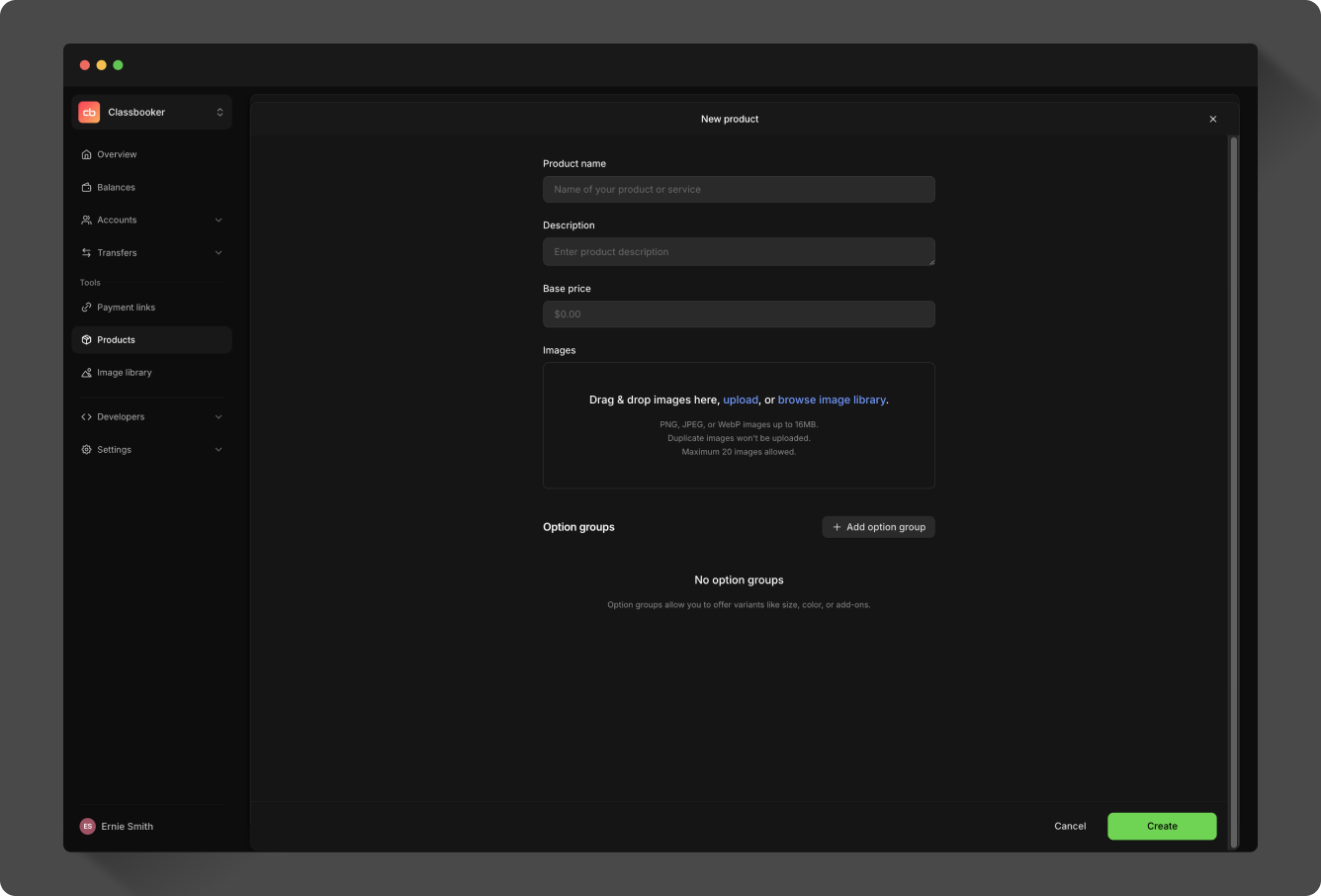
Create a product in the Dashboard
Click the New product button and fill out the information in the product modal. A product title and base price are required. A description, image, category, and group are optional. Images can be in PNG, JPG, or WebP format. Duplicate images and images larger than 16MB will be rejected.
Manage products in the Dashboard
Once you've created products, they'll appear on the main product catalog view. All elements of a product can be edited. Click on a product to view it, and click the ... menu button to edit or delete the product.

When you view or edit a product, your image library is available. Any images you add while editing a product are also added to your image library.
Categories
Assign a category to a product to organize your catalog and make products easier to find. Categories come from a standard, read-only product taxonomy (for example, Food, Beverages & Tobacco > Beverages). Select a category from the list when creating or editing a product.
When you create a payment link or transfer in the Dashboard, you can either select an existing product or enter a custom amount. You can search for a specific product, or scroll through all your products.