Onboarding links
Use Moov's hosted onboarding process to create business or individual accounts right in the Dashboard. Pre-fill data, then select capabilities and a pricing fee plan. Send the form directly to a business or individual to complete on their computer or phone.
Navigate to Accounts > Onboarding links to create a new onboarding link or view the status of links you've sent out for completion.
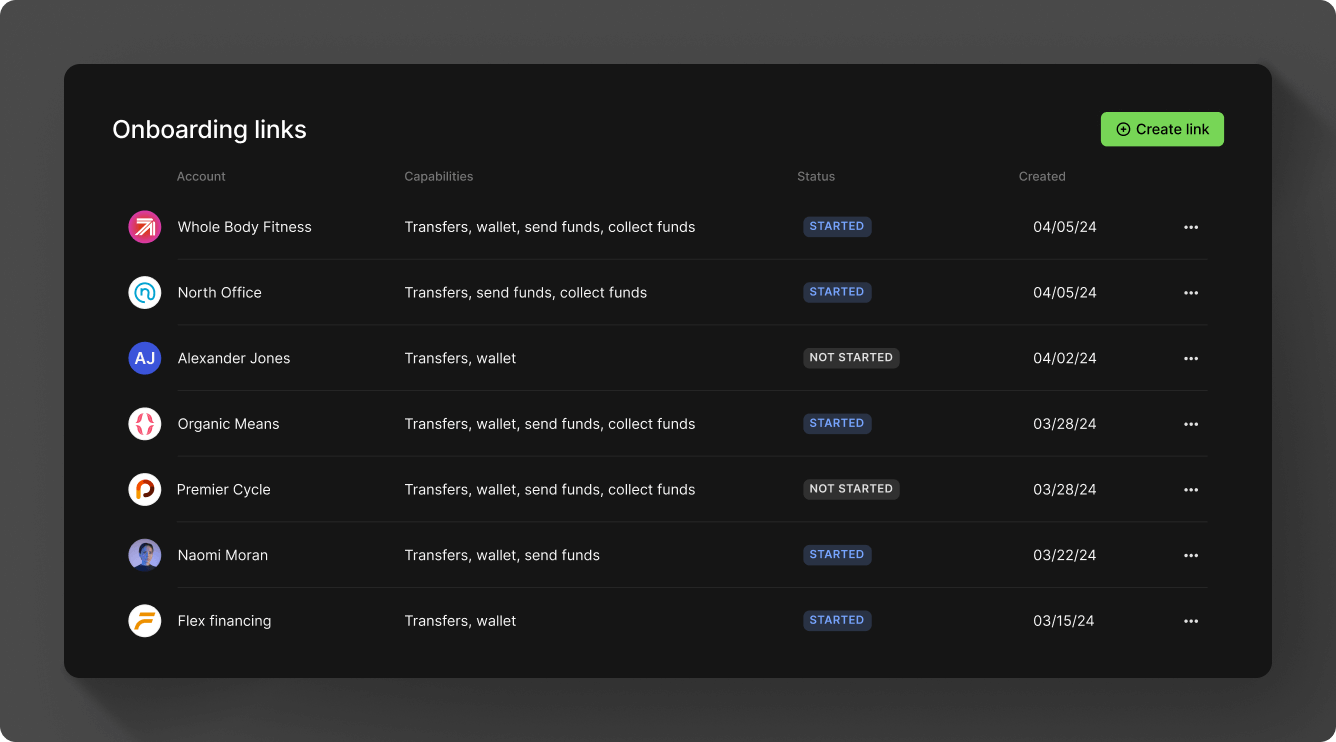
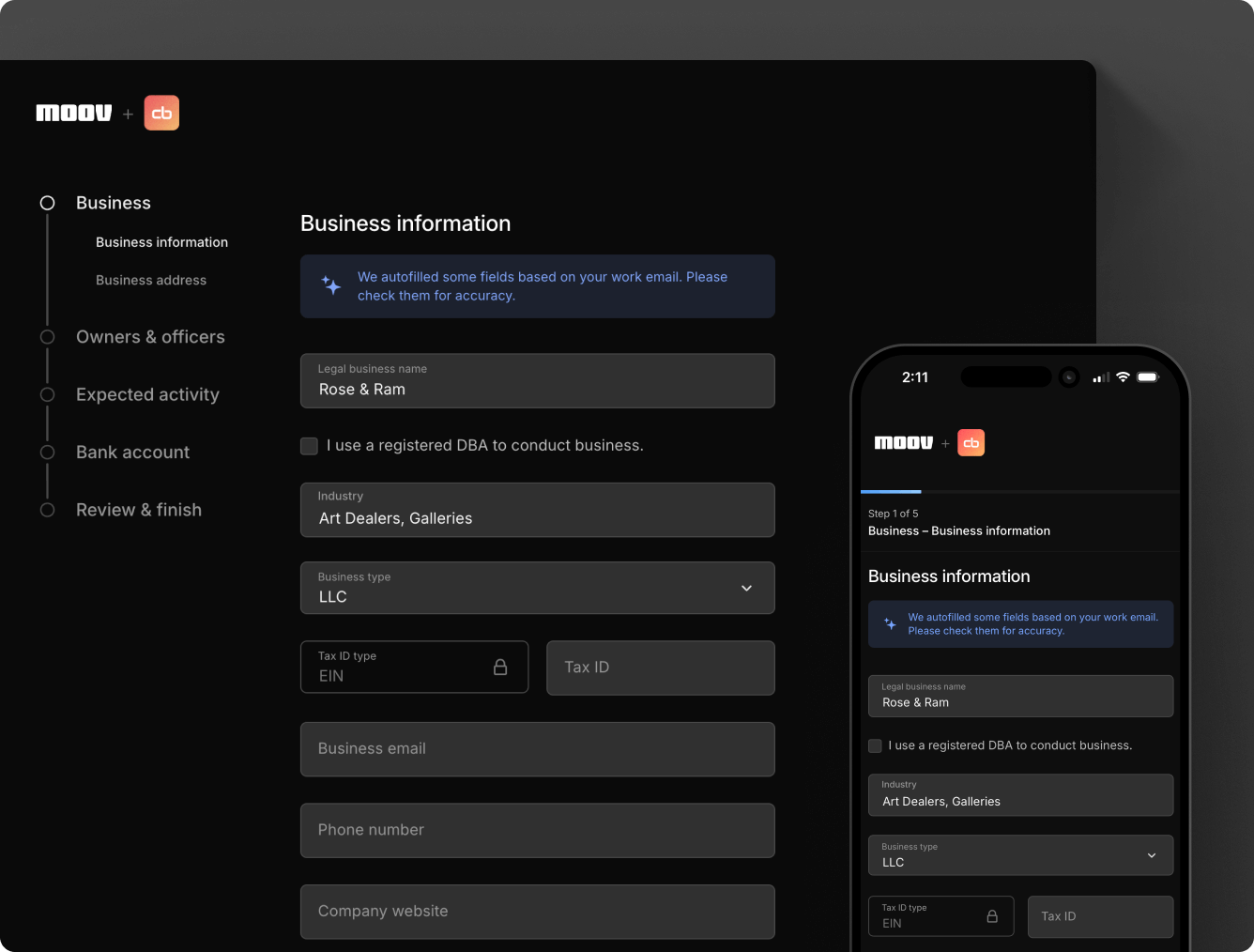
The onboarding form allows you to create accounts. You can prefill existing customer data like names and contact info. You'll select capabilities, scopes, and a pricing plan for each account.
You can provide an optional return URL and terms of service URL under Advanced options. A return URL is where you would like to send users after they've completed the form. If you need users to agree to your own terms of service, you can provide the URL in that field.
If you've set up brand colors, the onboarding flow will reflect your branding. The onboarding process can be finished on the new account holder's own device.
Capabilities
Select a business or individual account type and choose the capabilities for the account. Capabilities allow Moov accounts to receive transfers or send money to other accounts. Each capability will have a set of requirements that need to be met before it can be enabled.
Capabilities allow you to accomplish the following:
- Authorize debit transfers
- Store funds with Moov
- Send funds to another account
- Collect funds from another account (business accounts only)
- Provide a virtual card to an account (business accounts only)
You can request the following capabilities depending on use case and need:
wallet.balancecollect-funds.achcollect-funds.card-paymentssend-funds.achsend-funds.instant-banksend-funds.push-to-cardcard-issuingmoney-transfer.pull-from-cardmoney-transfer.push-to-card
Visit the capabilities section for details about functions and requirements. To view and manage enabled capabilities on an account, navigate to the business or individual's Account > Capabilities page.
Scopes
Scopes specify what actions an account can take on Moov's platform. When you enable certain scopes for yourself and the new account, you create connections between your account, the merchant account, and the merchant's customers:
- Partner: The top-level integrator account with visibility across all connected merchants and their customers
- Merchant: A business account, created by their Moov partner, that can manage its own customer base
- Customer: An end-user or buyer involved in a transfer on Moov's platform associated with one or more merchants
Moov maintains strict access controls when a partner shares scopes. While a partner gains visibility across every connected account, businesses can only access their own customers.
The following scopes can be shared by a partner to other accounts:
accounts.readaccounts.writeanalytics.readapple-pay-merchant.readapple-pay-merchant.writeapple-pay.readapple-pay.writebank-accounts.readbank-accounts.writecapabilities.readcapabilities.writecards.readcards.writedocuments.readdocuments.writefed.readfiles.readfiles.writeissued-cards.readissued-cards.writeissued-cards.read-privatepayment-methods.readping.readprofile-enrichment.readprofile.readprofile.writeprofile.disconnectrepresentatives.readrepresentatives.writetransfers.readtransfers.writewallets.read
Enable scopes
Moov preselects some scopes to enable based on general usage of Moov's platform. Select Edit scopes to enable a different set of scopes and create a connection for the account.
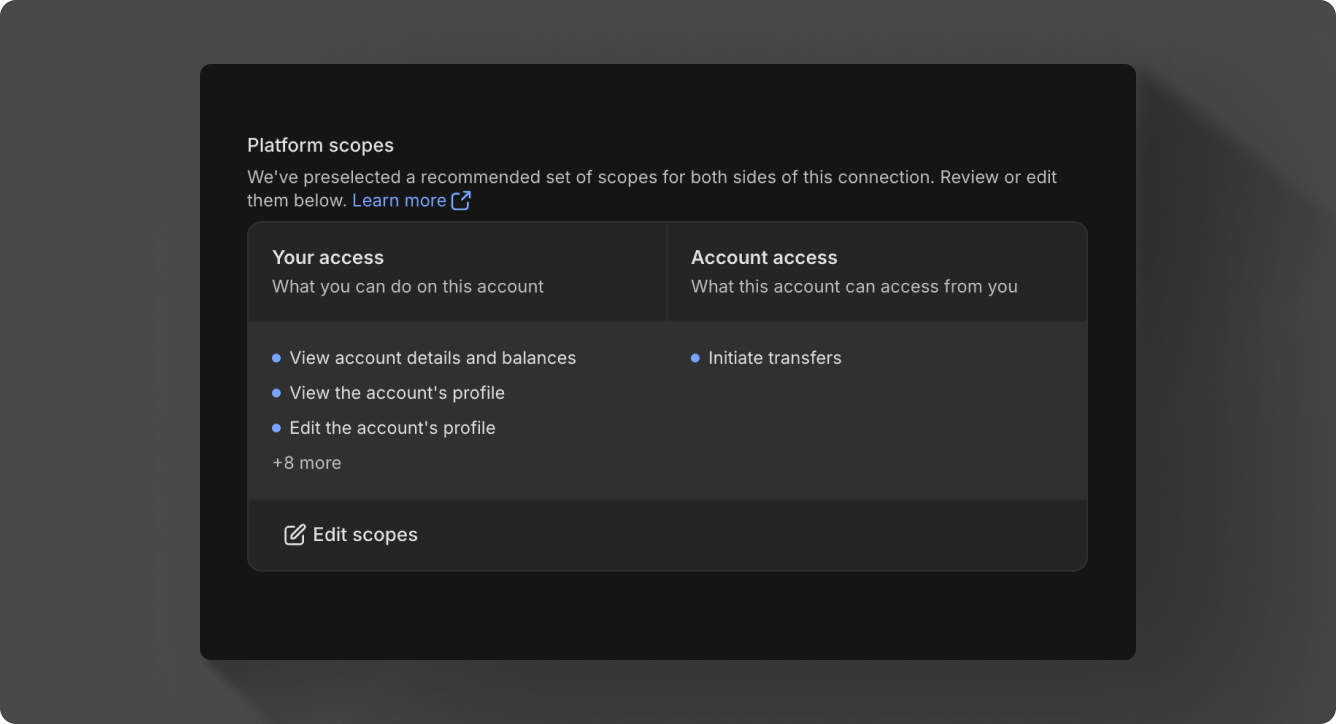
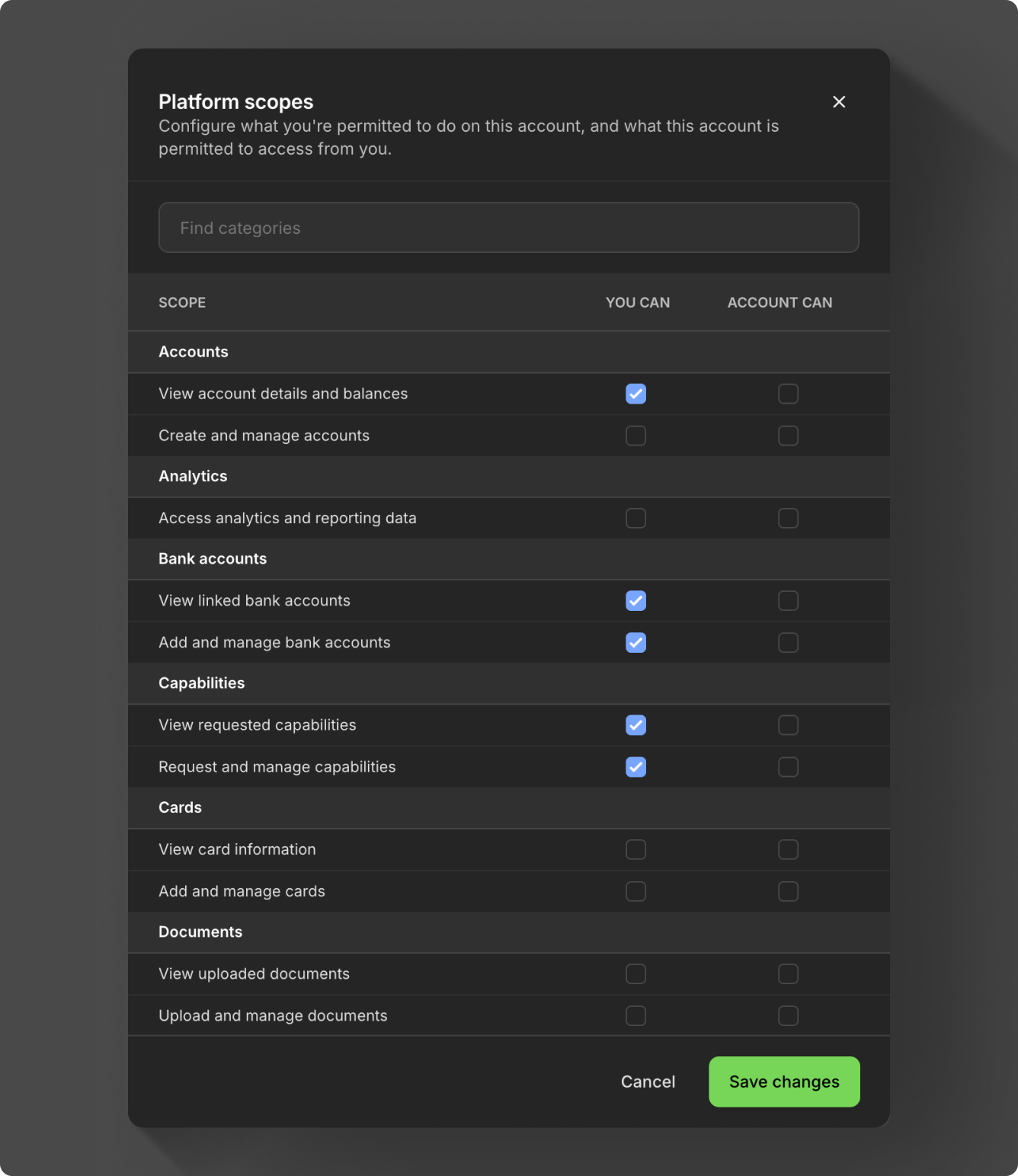
The new account will see which scopes are enabled during their onboarding process. Additionally, accounts onboarded through the hosted onboarding process can view any customers that you've shared with them.
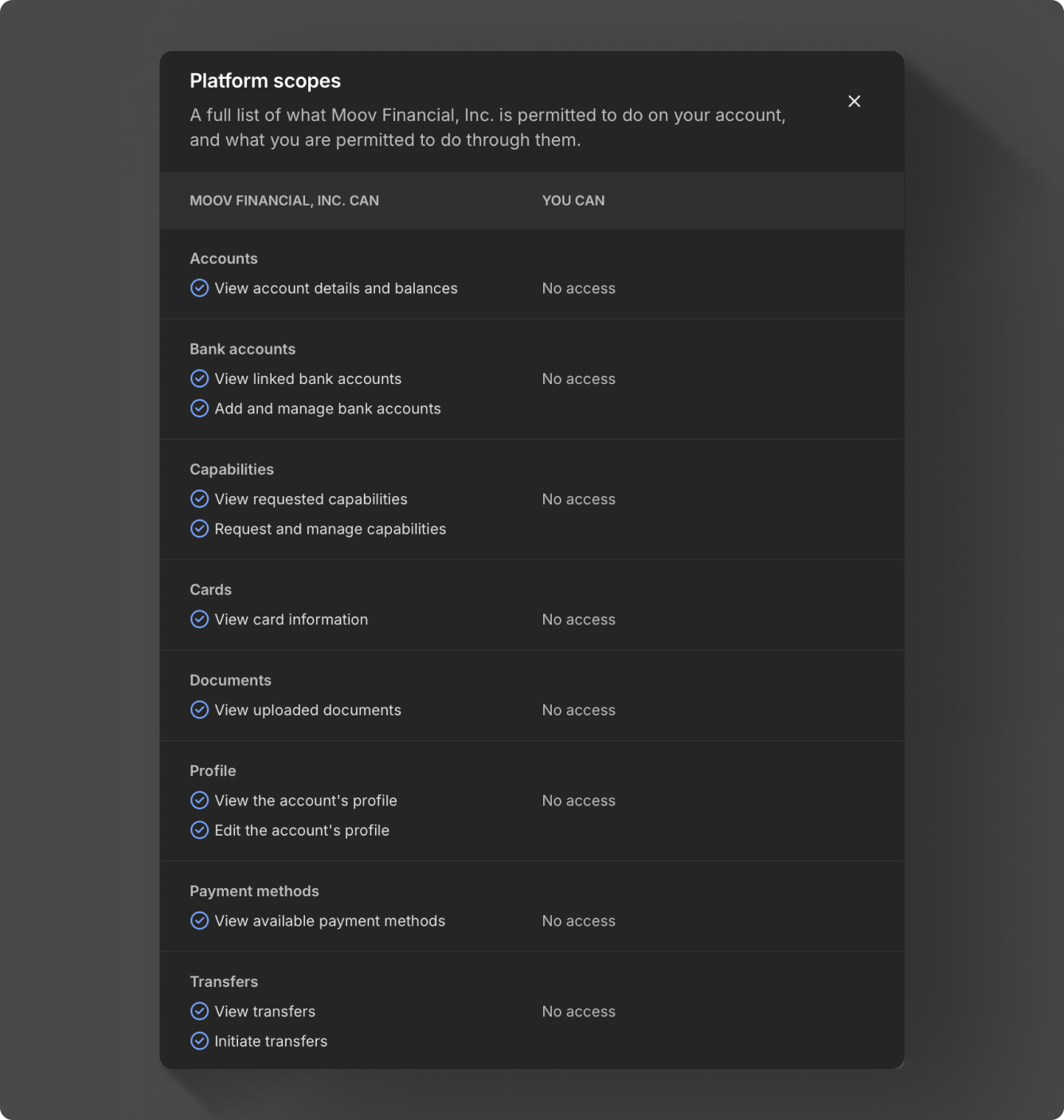
To view enabled scopes on an account, navigate to the accounts's Account > Settings page and hit View under the Platform scopes section.
Pricing plans & disclosure
Select a standard plan, which has a $500 monthly transaction minimum, or set up a custom interchange plan. For some fees, you have the option of choosing an all-in model, or you can also assign specific fees based on fee types.
Once you create a plan, you can assign it to one account or reuse it for many accounts. New accounts must agree to and accept the fee plan before it can go into effect.
Cost plus: With a cost plus plan, card networks’ interchange fees and Moov’s processing markup are passed along to the account. Cost plus plans are beneficial for accounts with a high and varied transaction volume that prefer to have more control over fees. Fees are broken down into a more digestible and transparent format.
Flat rate: With a flat rate plan, you can lump all the processing fees together with a flat rate customized for each account. Flat plans are beneficial for accounts with a low transaction volume that prefer a predictable solution over lowering cost as much as possible.
When you set up an account with a fee plan, they will receive a pricing disclosure they need to accept. The pricing disclosure shows the rates for the following:
- ACH
- Card acquiring
- Instant payments (RTP)
- Transaction management fees
- Platform fees
- Network fees
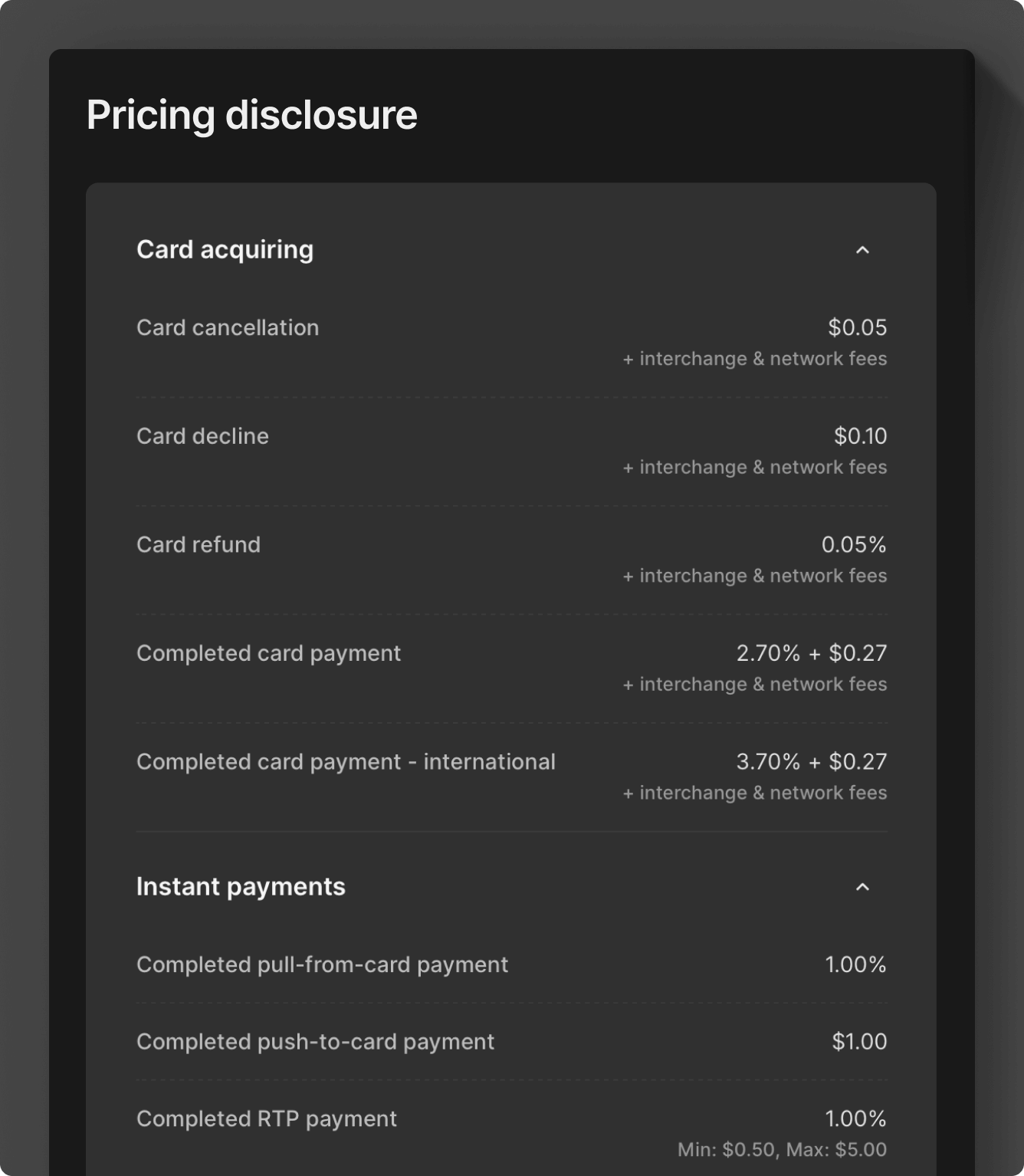
Familiarize yourself with billable events. A billable event is an action on Moov's platform which triggers a fee assessment. Fees from billable events are assessed in real time and charged to the account's wallet. The debit transaction from the account's wallet contains the following properties.
Transaction type:Moov feeSource: Can be one ofTransfer,Dispute, orFeeMemo: Describes the fee charged. For example,Fee for card payment.
Moov will roll up fees related to the same source. For example, a card payment transfer's Moov fee will be the sum of all the fees that were charged for a successful card transfer. Typically, the Moov fee wallet transaction will be completed immediately after the source is in its final state.
| Billable event | Description | Fee condition |
|---|---|---|
| ACH volume | Individual ACH debit and credit transactions originated on the platform. |
ach-credit-same-day ach-credit-standard ach-debit-collect ach-debit-fund |
| ACH return NOC | ACH exceptions, including returns and notices of change (NOC). |
unauthorized authorized noc |
| RTP volume | Completed, successful Real-Time Payments (RTP) disbursement transfers. |
|
| Push volume | Push-to-card disbursement transfers. | approval decline |
| Pull volume | Pull-from-card instant funding transfers, including sales, refunds, and declines. |
approval decline refund |
| Card settled volume | Completed, successful card acquiring payment transfers. |
cardBrand cardType |
| Card auth volume | Card acquiring payment authorizations, regardless of outcome, including sales, refunds, and voids. |
decline refund void |
| Dispute count | Initiated or received dispute. | |
| Card verification count | Verifying a cardholder’s account details when linking a card. |
|
| Card update count | Details of a card on file are updated through Moov's card account updater service. |
|
| Instant verification count | Instant micro-deposit verification. | |
| Wallet fee | Charged monthly per account for maintaining access to the platform. |
|
| Payment acceptance fee | Charged monthly per account with any of the collect-funds and/or send-funds capabilities. |
|
| PCI fee | A monthly maintenance fee for PCI compliance and monitoring all accounts. |
View our pricing and fee plan guides for more information.
Communication
When you're ready to send the link, simply copy it and send it via email or SMS. The new account must accept the pricing fee plan and agree to the pricing disclosure before the plan can go into effect. You are responsible for communication regarding pricing models.
Additionally, if there are any changes or updates to a fee plan, you're responsible for communication and the new plan needs to be accepted by the account.